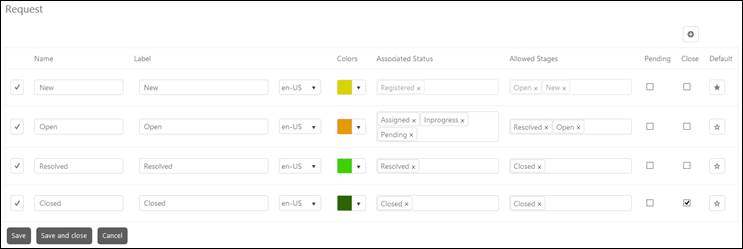
When you choose to add or edit the entity Stages, by clicking Edit Stages, the following form will be shown:
This form provides an interface to add, edit and activate or deactivate the stages for an entity. Stages can be New, Open, Resolved, Closed etc. You can define the name, label, language, and color code as you want for different stages and associated statuses for each stage.
Edit Stages
There are three more fields: Allowed Stages, Pending and Close:
•Allowed Stages field define the next stages of the entity residing in the particular stage. When you save the entity with the status residing in this stage then you can only see status(es) defined in the allowed stages when you open the entity next time.
•You can mark the checkboxes under Pending to mark that stage as Pending. If the entity is in Pending stage then all associated SLA events and notifications will be removed. The SLA will not be displayed for that entity in entity list. The SLA will get an effect only when the entity’s stage is changed to any other stage from the Pending stage.
•You can mark the checkboxes under Close to mark that stage as Closed.
If no stage is defined in the allowed stages then it will work as lock out for the entity. Entity will be locked and it will not be allowed to edit further. User is also not able to add comment. If any email is sent referring to the entity in that state then new entity should be registered. Entity should not be editable in Self Service Portal as well.
If there are any allowed stages then entity will be reopened to the stage – Status when any update is made or comment is added. If any email is received for that entity then it will be added as entity comment and it will be reopened. Note that if multiple stages are defined then the entity will be reopened in the stage/status which is defined first in the chronological order of allowed stages.
Note that a single stage cannot be marked as both Pending and Closed.
You can define the default stage by clicking ‘ ’ icon. Statuses of the allowed stages
defined for this stage can be displayed as default in Submit as: button of an entity form. For example, if
‘New’ stage is set as default for Request entity then respective statuses
‘Assigned’, ’In Progress’, ‘Pending’ and ‘Registered’ will be displayed as
default statuses in Request Entity form while creating new request.
’ icon. Statuses of the allowed stages
defined for this stage can be displayed as default in Submit as: button of an entity form. For example, if
‘New’ stage is set as default for Request entity then respective statuses
‘Assigned’, ’In Progress’, ‘Pending’ and ‘Registered’ will be displayed as
default statuses in Request Entity form while creating new request.
To save the changes made in the selected entity type, click Save button. You can also click Save and Close button to save the changes and go back to Entity Editor page.