Email is a way for End Users to submit their tickets. Normally all emails sent to NSP are converted to tickets. Only exception is if the email subject contains a unique prefix for the NSP installation and a ticket id. The email then is added as a comment to the existing ticket.
You can set up the email account using different email service providers supported by NSP like Microsoft Exchange, Microsoft Office 365, Gmail, Yahoo or Custom (POP or IMAP).
To access the Email Configurations go to Configurations > Channels > Email Configurations.
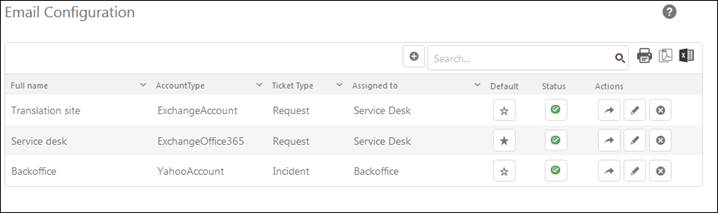
Following figure shows the Email Configurations page:
Email Configurations page mainly contains the list of configured email accounts. Functions for search, sort, filtering, print and export are similar to other lists in NSP, see section General User Interface.
The list has the columns: Full name, Account Type, Ticket Type, Assigned to, Default, Status and Actions buttons Send Test Email, Edit and Delete.
•Full name: The name of the account
•Account Type: This can be one of any type from the provided types of providers.
•Ticket Type: The ticket type for which the email account is configured. All the emails received get converted to this type of ticket.
•Assigned to: The group to whom the tickets sent to the email account are assigned.
•Default: column contains  buttons to mark or unmark an email
account as default. Default email address will be used for outgoing mail
communication in NSP. Note that only one from the configured email accounts can
be defined as default.
buttons to mark or unmark an email
account as default. Default email address will be used for outgoing mail
communication in NSP. Note that only one from the configured email accounts can
be defined as default.
•Status: Enable or disable use of the email account.
•Actions contains three different buttons:
o Email Send: This action is used to test whether the email account is configured correctly or not. Clicking this button will open a popup where you need to specify recipient email address to which the test email should be sent from the configured email account.
o Edit: This action is used to edit configured email account and its different settings. Clicking Edit button opens the respective Edit Email form based on which service provider is configured for the email account.
o Delete: This action is used to delete the email account.