NSP supports various Mobile devices that include: iOS, Android, Windows RT and Windows Mobile. The user interface for each of these can be configurable based on requirements. The Mobile Configurations page provides the facility to configure mobile user interface:
Mobile Configurations
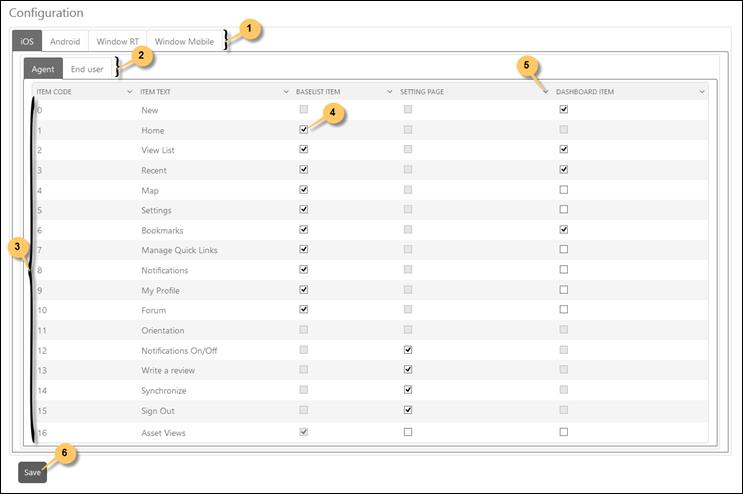
All the four types of Mobile Configurations are accessible using tabs (1). Each tab contains tabbed interface to display various Mobile Applications based on the workflows supported by NSP. NSP supports End User and Agent interface for Mobile Applications, placed in two different tabs (2).
Each tab of workflow (i.e. Agent/End User) contains a list of respective features (3). Each row in the list includes Item Code, Item Text, a checkbox for Base List Item, a checkbox for Settings Page and a checkbox for Dashboard Item.
The first value displays the code for the specific item and the second value shows the name of the feature item like Notifications, Sign out etc. To add any feature in the base list (i.e. main menu of the app – tab bar for iOS), you enable the checkbox given for that specific feature Base List Item (4). To add any feature in the Settings page, you enable the checkbox under Settings Page for that specific item. If you want to add any feature in the Dashboard screen then you enable the checkbox for that specific item under Dashboard Item column. Note that only four items can be enabled in the Dashboard Item and Recent item cannot be enabled only for Base List Item or Dashboard Item. Hence, if Recent item is not available in Base List Item then it cannot be available in Dashboard Item.
After updating configuration, click Save button (6) to save the changes on the server. The system gives success message if the data is saved successfully.
The feature list may vary according to the workflow and mobile OS selected. The configuration here gets reflected into mobile applications.