New CI can be added in two ways:
•Add CI button above the CI List. This button changes based on selected CI Type in the left pane. If e g Software is selected, than text on button is Add Software, and the form to create a new Software CI will be opened. If you have not selected any CI Type (All CIs is selected) you first have to select CI Type in a popup shown below.
•Click the Add+ button In Dashboard and choose CI from dropdown list. First step is to select appropriate CI Type or subtype from the list of default and custom CI Types.
After selecting CI
Type, you will get a list of default properties which need to be edited
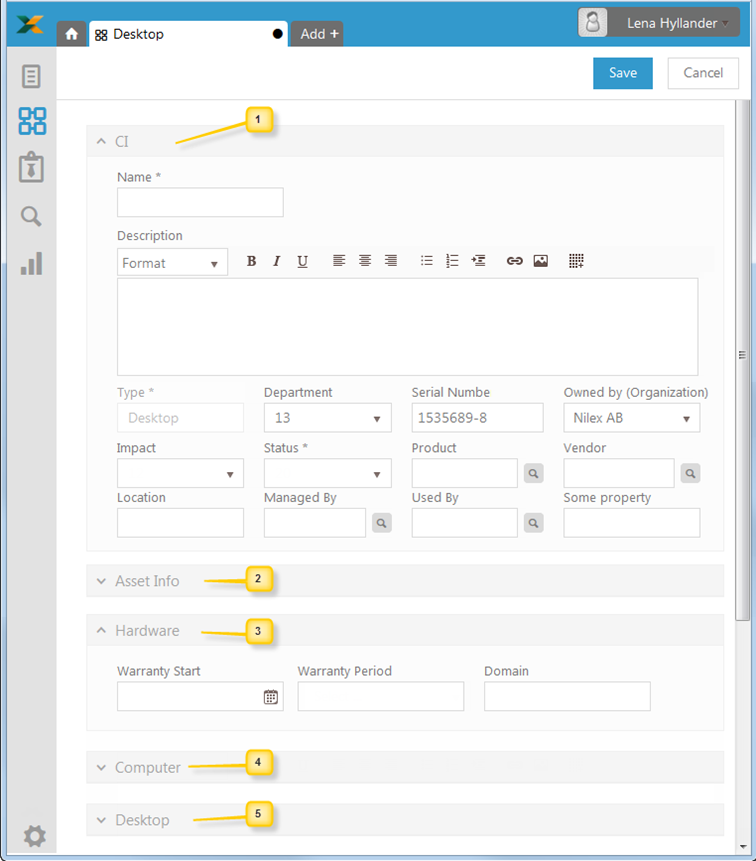
(the example below shows the form when CI Type
Desktop has been selected, form includes
properties for inherit CI Types Computer, Hardware and the
default CI properties), because Desktop is a
subtype of Computer is a subtype of Hardware.
Properties for new CI (example)
1. CI: List of default properties that each CI has, and which are same for all CI Types. Name, Type and Status are mandatory fields. Type is generates value from the chosen CI, and can’t be edited.
In table below are description of all default properties.
2. Asset Info: Information about asset. Only Hardware and Consumable CI types have these properties.
3. Hardware: Properties inherited from CI Type Hardware.
4. Computer: Properties inherited from CI Type Computer.
5. Desktop: List of properties only for the particular CI Type Desktop.
This is only the example of adding a new Desktop CI. Other CI contain other default properties from their parent, depending on their Type.
|
Field |
Description |
|
Name |
Text field. Insert name of CI |
|
Description |
Text area field. There are formatting tools to format text, and you can add images and links. |
|
Type |
CI type. Generated value due to the chosen CI, and can’t be edited. |
|
Department |
Dropdown field. You can choose from Departments defined in CMDB. |
|
Serial Number |
Text field. Insert serial number of CI |
|
Owned by |
Dropdown field. You can choose some of Organization defined in CMDB |
|
Impact |
Dropdown field. You can choose Impact defined in NSP. |
|
Status |
Dropdown field. You can choose Statuses defined for CI Lifecycle. |
|
Product |
Auto-complete field, also contains browse form for ease of reference. You can choose some of Product defined in CMDB. |
|
Vendor |
Auto-complete field, also contains browse form for ease of reference. You can choose some of Vendor defined in CMDB. |
|
Location |
Auto-complete, dropdown field. You can choose Locations defined in NSP. |
|
Managed By |
Auto-complete field, also contains browse form for ease of reference. You can search for a user in NSP which manage referent CI. |
|
Used By |
Auto-complete field, also contains browse form for ease of reference. You can search for a user in NSP which use referent CI. |