 ) in the left sidebar in the Agent interface.
NSP search feature allows you to search for information in the entire system. It also provides various options to filter the search results. The filter option can be based on data category like tickets, tasks, users, organizations, knowledge base and CI or it can be based on time intervals like Past day, Past week, Past month, and Past year.
NSP searches entire system data based on search
criteria. Search is a valuable feature in systems
having large data set. Access to this feature is provided by Search button () in the left sidebar in the Agent interface.
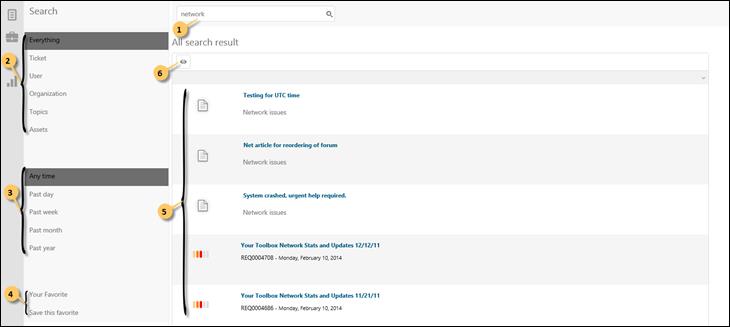
The different parts of the Search page are labeled in the below figure and are explained in the text following the figure.
Search Option
|
1. |
Search box. Insert keyword and press Enter or click the Search icon. Search result will be displayed in the list (5) below the search box. Wildcard characters * or ? could be used in keyword. ? represents exactly one character, * represents one or more characters. Note: If you use part of word as keyword you have to include a wildcard representing first part of the word. For example if your keyword is “ardw” the system does not find “Hardware” items. Keywords “*ardw”, “*rdw” or “?ardw” will get result by items including the word “Hardware”. |
|
2. |
Filter options are provided in the left pane. It includes two types of filters: data categories and time intervals. Data categories contain filters based on the search result data type. Available options are Tickets, Tasks, Users, Organizations, Knowledge base and CI. At the top of these options, Everything option is available which is used to display search results falling under all type of categories. Search in Tickets includes searching in fields: Subject, Description, Reference No, Priority, Requester and Assignee. Search in Tasks includes searching in fields: Subject, Description and Assignee. Search in Users and Organizations includes searching in fields: Name and Email address. Search in Knowledge base articles includes searching in fields: Title and Description. |
|
3. |
Time based filters use the time for latest update on search items to filter the search result. Following options are available: Anytime, Last day (last 24 hours), Last 7 days, Last 30 days, and Last year (last 365 days). |
|
4. |
NSP provides an option to use favorite searching queries created earlier. Two options are available: My favorites and Save current as favorite. My favorites open a list of searches added as favorites earlier. Edit button is used to execute the search. Clicking Save current as favorite adds the current search as a favorite. |
|
5. |
In this list is the search result presented. Function for sorting are available in the list similar to other lists in NSP. |
|
6. |
Above the search result list is the button Show all. This button alternate page display and show all. |