Ticket Comments
The Comments tab is
displayed only when Ticket tab is selected in the
left part because comments are associated with the ticket only and not to Requester or Organization.
The top most part of Comment tab consists of Source Icon, Id, Subject, Time spent
(Note: only displayed if Comment Timer is enabled), Priority, Created (User and time) Updated
(User and time), Status and Form Template
buttons.
The Status button shows
the status of the ticket and could be used to update status, see section Status button.
Using Form Template button
you can change the form template for the ticket. A popup is opened, containing a
dropdown list with templates available for the ticket type, see section Form template.
Below the topmost part the ticket Description is displayed. If the description is too long
to be displayed in the box, then click Show More
link to expand the box and view the entire description. Show Less collapses the box and view short
description.
Below the description, there is a textbox provided to
add a comment for the ticket. The formatting panel includes common text
formatting options; Bold, Italic, Underline, Strikethrough, Unordered list,
Ordered list and Insert hyperlink.
Additional options for
comment tab:
• Insert Tags: Select the tag from the dropdown list to
insert into comment text (at the cursor’s position). For example, if you want to
include requester’s name in the comment then select Requester from the dropdown.
• Select Comment Template: Select Comment Template from
the dropdown list to insert the comment text from existing template. For
example, if you had created template like “Generic Solution” then the text in
the comment box will be replaced with the text defined in the template. This
helps user to reduce effort in writing generic solution.
• Comment Timer: This option is displayed only when the
Enable Comment Timer option is enabled in User Profile. Comment Timer
includes a start/stop button, a label displaying the time, and an edit
button to edit the recorded time. Click Start
button before writing a comment. When finishes click Stop button to stop the timer. You can edit the time if
required using Edit button. Toggling the Timer can also be done using CTRL+ALT+B. If Enable Auto Timer option is enabled in User Profile the
timer starts automatically as soon as you enter text in the comment box.
• Work Log Timer: Option is displayed when the Enable Work Log Timer option is enabled in the User Profile. This timer starts directly when you open
the ticket form, and stops when you click Save Work Log
Timer.Preview: Used to preview the comment
text. Opens a popup displaying the text entered in comment box.
• Preview: Used to preview the comment text. Opens a popup
displaying the text entered in comment box.
Below the comment textbox, there is a panel containing
other options available for Comments:

Comment options
Description of Comment
options:
|
Function |
Description |
|

|
Two buttons to define whether comment should be
Public or Internal. Internal comments are sent as internal notes to Agents
and are not visible for End Users. Internal comments are displayed in
yellow background color.
The button for current selected alternative is
displayed in darker color. In the example to the right Internal is
selected. Chosen alternative is displayed in text to the right of Mail
button. One of these alternative texts is displayed: “Your comment will be sent as a public reply” or
“Your comment will be sent as an internal
note”.
If you change an
already saved comment from Internal to Public it content
will be sent as a notification, normally to the End user.
Default option is defined in User Profile
Settings. |
|

|
Two buttons to define whether comment should be
marked as solution or marked as workaround. Buttons have toggle function,
only one of them be selected.
The button for current selected alternative is
displayed in darker color. Chosen alternative is displayed in text to the
right of Mail button. If any of button is selected, one of these
alternative texts is displayed: “Your comment will
be marked as solution.” or “Your comment
will be marked as workaround.”. |
|
|
Save the comment. |
|

|
Send Email comment (Direct Mail). A popup form is
opened where you fill message data.
Select the recipient(s) for email from the list.
You can also enter email addresses if they are not available in the list.
If the setting Requester pre-selected recipient in
direct mail is selected in Agent Portal
Configuration is the Requester of the
ticket pre-selected as recipient of the email (but it could be
edited).
CC: Select the
recipient (s) of a copy of the email from the list, or enter the email
addresses. Note that field already contains the email addresses of users
who is defined as CC in the ticket.
Ticket Id and Subject is predefined as the email Subject. However, you can change the subject.
The textbox to enter the email text is similar to
the textbox of comment. You can use formatting tools, tags and Comment Template in the same way.
Add as public comment: Select this option to
submit the message as a Public reply in the
ticket. If not selected comment will be submitted as Internal.
You can attach files by clicking the attachment
icon ( ). Attached files will be sent as
attachments in email and will also be attached with the comment submitted
in the ticket form. ). Attached files will be sent as
attachments in email and will also be attached with the comment submitted
in the ticket form.
After filling all
information, click Send button to submit a
comment and send the email. |
|
Search comment… |
Search box to search comments. Enter a search
keyword and press Enter or click the search icon in the box.
The list of comments will be filtered, displaying only comments containing
the keyword. |
|

|
Files could be attached to the comment. Clicking
this link opens a file explorer allowing you to select one or more files,
e g images, to add as a reference. |
|


|
Links to Expand/Collapse the comments. |
|
|
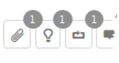
Four toggle buttons are provided beside search
box: Show Attachment Comments Only, Show Mail Comments Only, Show solution comments only and Show workaround comments only.
Only buttons having associated comments are
displayed. For example, Show solution comments
only button is displayed only if at least one comment is marked as
a solution.
Each toggle button also has associated badge
displaying the respective comments count.
When you click one of those buttons the comment
list will be filtered and only comments matching respective button are
displayed. Selected button´s color is changed. Click the same button again
to inactivate the filter and show all comments again. |
|

|
Two buttons, Comments and History
are provided to switch between these two types of lists. History list
includes every type of ticket updates.
Both the buttons have associated badge which
displays the count of comments and ticket updates respectively.
|
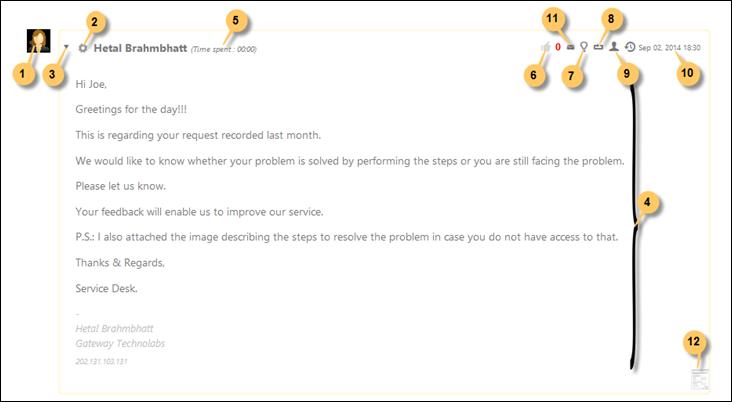
Figure showing a
single comment item.
Each item in the comment list contains various fields.
Comment Item
All the fields in the comment item are labeled in the
above figure and explained in the list:
1.
Profile picture of the user who posted the comment.
2.
Source Icon from where the comment is posted. It can be System, Facebook, Email,
Chat and Twitter etc.
3. The
arrow icon is used to collapse/expand the comment detail.
4. The
comment details show the actual comment text and name, organization and IP
address of the user.
5. This
shows the time spent to write a comment which is recorded by the timer. This
field is only displayed if timer is enabled.
6. Shows
the number of likes made to the comment by other users.
7. This
option is used to mark a comment as a solution. Comment is assumed to describe a
solution useful in resolving the ticket. If the comment is marked as a solution
then it is displayed with green border.
8. This
option is used to mark a comment as a work around solution. Comment is assumed
to describe a work around useful in resolving the ticket. If the comment is
marked as a work around then it is displayed with blue border.
9. An
option to change public comment to internal or vice versa.
10.
Shows the date and time when the comment was submitted.
11.
Shows that the comment is posted using Mail button functionality.
12.
Shows a thumbnail of the attachment. Clicking on it opens a popup allowing you
to save or open the file.
Figure showing a
single history item in the history list:

History Item
All the fields in the history item are labeled in the
above figure and are explained in the table:
1.
Profile picture of the user who made changes to the ticket.
2. Name
of the user who made changes.
3. This
section contains a description of the update made to the ticket. For example, in
figure “EntityStatus Closed Resolved“ means that Entity Status changed from Resolved to
Closed.
4. This
section displays the browser name and IP address.
5. Shows
the date and time when the change was made.