Articles are listed under each forum stream. Each row in the article list contains icon image and article name.
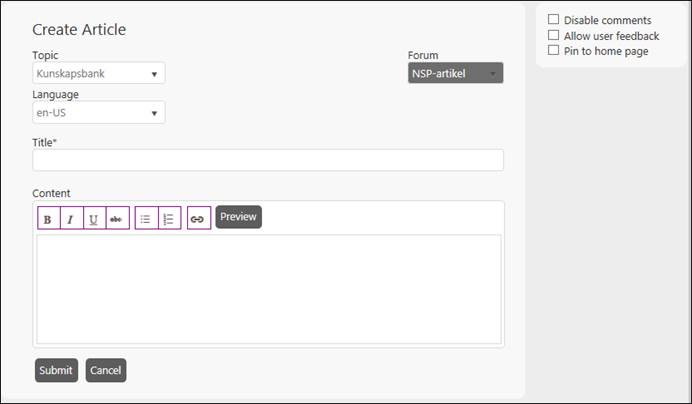
To add a new Article to the forum stream, click the add articles link provided for the forum stream when you mouse over it. The link opens the Create Article form:
Create Article
The Create Article fields:
•Title: Enter valid and meaningful title for the Article.
•Content: Enter Article text in the textbox. You can preview the content by clicking Preview button.
•Topic: Select which Topic the new article shall be a part of.
•Forum: Select Forum Stream from the dropdown list to which you want to add new article. This dropdown content will be updated when you select Topic.
•Language: Select language for the Article.
•Disable Comments: By enabling this option, you can disable a feature of posting a comment for the article.
•Allow user feedback: This option enables user to use like/unlike buttons when displaying the article.
•Pin to home page: This option is used to put the article on the Home tab. This way the article can be accessed on a quick basis.
After adding required details in the fields, click Save button. This will create a new Article in the selected forum stream.
End User doesn’t have permission to edit the Article detail. Once you have created the Article you can’t modify it. You can view the Article, post a comment and like/unlike the article.
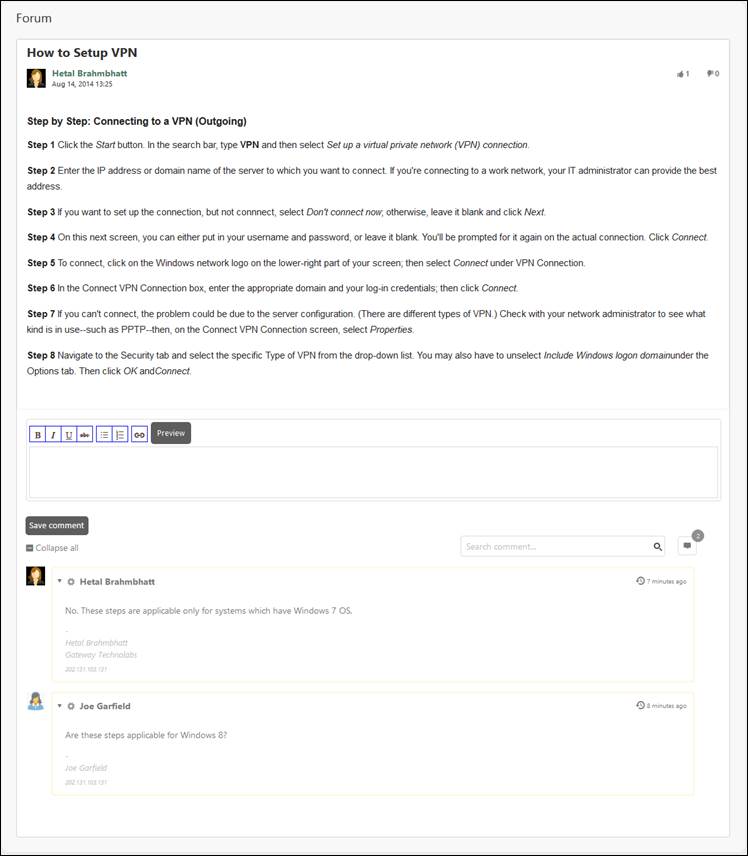
In Home page and in Knowledge base page, the Articles are listed under their respective forum streams. Click any of the Article from the list to see its details:
Article Detail
In the top of the screen the title of the article, profile picture and name of the creator, created date and buttons for like/unlike.
|
|
You can like the article by clicking Like button. |
|
|
You can unlike the article using by clicking Unlike button. |
Below this information the article text (Content) of the article is displayed.
To post a comment to the article, a comment textbox is provided below the text section. Enter comment in the box and click on Save comment button to post it.
Below the comment text box all the comments made to the article, a search box to search a comment, and an option to expand or collapse all the comments are displayed.
You can enter desired search keyword in the search box and press enter to perform search. Just below the search box, all the comments made to the article are displayed in a list. Each comment item contains profile picture, source icon, an option to collapse the comment, name and organization of the user who posted the comment, comment text, IP, and posted date and time.
To perform search operation enter keyword in the search field and press Enter or click the search icon. The list of comments gets updated with the search results.

