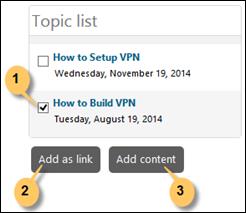
When ticket form is loaded (add new ticket) and search automation is enabled for Description, a list containing search result from Forum is displayed below the search box as soon as you type in the Description field (press Space to execute the search). Following figure shows an example of search result topics:
Topic List
Each item in the list contains a checkbox, topic title and date when topic was created.
If you mouse over a topic a popup containing title and description of the topic is displayed. Clicking a topic opens topic detail page in a popup with a link to open the topic in Self Service Portal. The link opens Self Service Portal in new browser tab.
If you check a single topic only, two options are enabled; Add as link and Add content. Clicking Add as link inserts a link to the topic in the Description of the ticket. Add content button adds the description of the topic as a Description text of the ticket.
If multiple topics are selected only Add as link button is displayed, means you can add links for the multiple topics but not the content.
Clicking on these links from editor opens respective topic detail page in a popup whereas clicking on the same in read only description field after saving the ticket, opens the topic detail page in Self Service Portal in new browser tab.