This buttons opens a popup, where you map groups in Active Directory to corresponding groups in NSP. You have to map at least one group.
Note: If you specify a NSP group, but no corresponding AD group, all users in AD will be imported to the NSP group.
Note: Group Mappings button will appear only when you Edit a LDAP Server Job. When you create a new Job you have to Save it once first and then Edit to be able to map groups.
Group Mappings Example
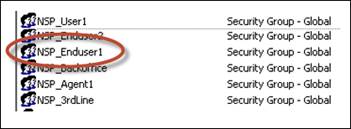
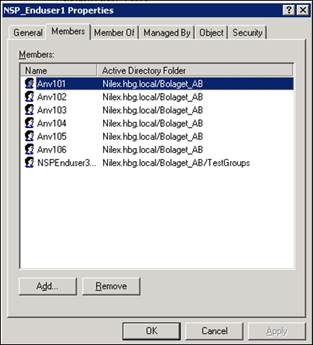
Active Directory includes a group “NSP_Enduser1” we will get users from. This group consists of a number of users:
AD Group NSP_Enduser1
In LDAP Server Job form, Select New in Sync data selection to import new users and Select NSP Organization the new users will be members of, and then Save.
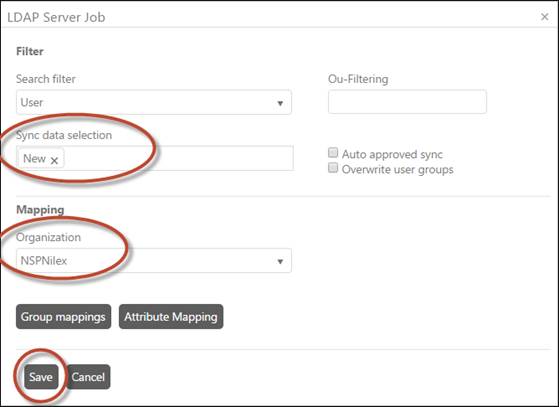
LDAP Server Job selections
Now the new LDAP Server is displayed in the list at the
bottom of the Sync Settings form. Click Edit
button  for the new server:
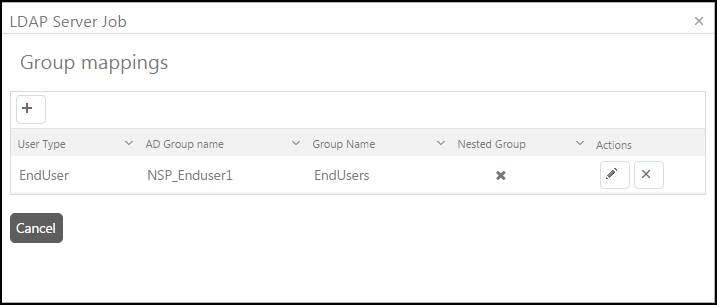
LDAP Group Mapping
Here we create a mapping for AD Group “NSP_Enduser1”, select User Type “EndUser” and NSP Group “EndUsers”. Close the form.
In Sync Settings form we
now can select Sample Data Set button  to get a list of users that will be
imported in this mapping:
to get a list of users that will be
imported in this mapping:
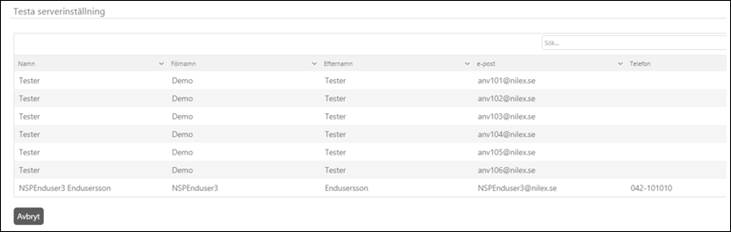
LDAP Sample Data Set
Ou-Filtrering
Ou- filtering adds a filter to the Group Mapping. In this example we use the same Group Mapping as before (AD Group “NSP_Enduser1”, User Type “EndUser” and NSP Group “EndUsers”), see image above.
We make a change in the Active Directory for one particular user (Anv101):
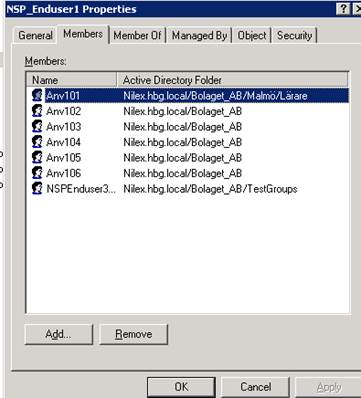
AD Group NSP_Enduser1
If you now insert one or more ou (separate with semicolon if more than one), this filter will add an extra filter to the Group Mapping:
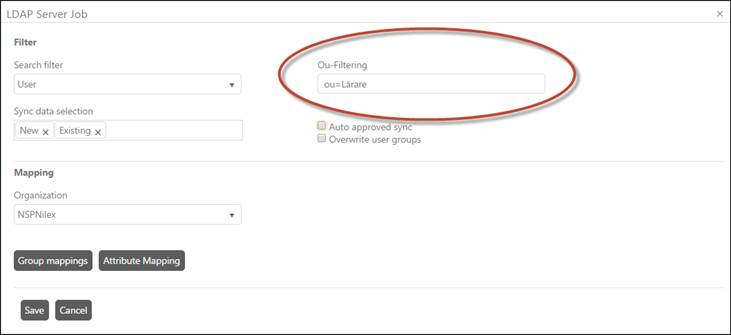
LDAP Server Job Ou-filter
If you now test the filter by clicking Sample Data Set button, the result will consist of only the user anv101@nilex.se because of the Ou-filter:

LDAP Sample Data Set
If you want to apply the Ou-filter without Group Mapping you can remove the AD Group Name we used before. However we must keep the information that we want to create the users as User Type “EndUser” and place them to NSP Group “EndUsers” in the Group mappings:
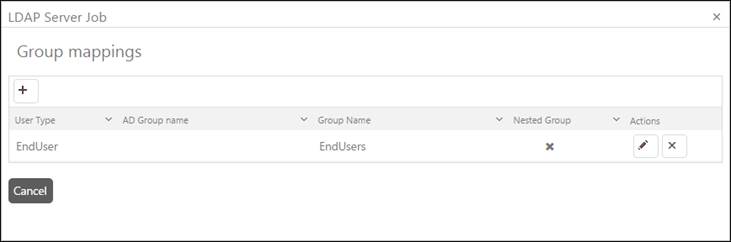
LDAP Group Mapping without AD Group