
Single Sign-On is a function that uses your Windows credentials to automatically login when NSP sajt is opened.
There are two conditions that need to be fulfilled to access the SSO function:
•In order for SSO to work it must be enabled and set up by the administrator for the system.
•You must set
your account to allow SSO. This is done from your profile settings
page.
Open this by clicking User profile under the User account button in the top left corner:
User Profile
Check the Enable Single Sign-on checkbox and Save.
After the SSO option has been enabled on your profile, during the next logging in, you will be presented with the following pop-up:
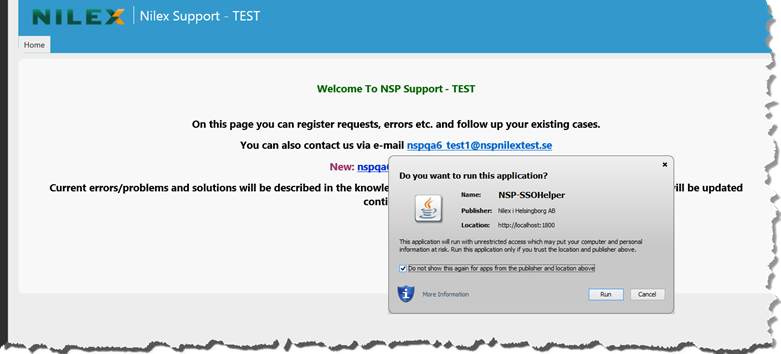
Single Sign-on
Here you mark the “Do not show this again from the publisher and location above” to stop this pop-up from showing again. After that, click “Run” to allow SSO Helper to authenticate you.
Login by writing your AD-account name and password in the Login form