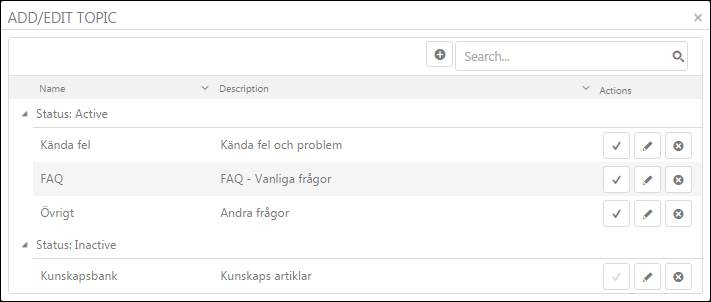
Forum is divided into various topics. These topics are created and managed by system administrators or Agents given this permission. To manage (add/edit/delete) topics, click Add/Edit Topic in Knowledge base tab. A popup is displayed containing a list of existing topics:
Add/Edit Topics
The list displays active topics followed by inactive ones. Each item in a list contains Name, Description and Action buttons Activate, Edit and Delete. Activate button is used to activate or deactivate the Topic. Only active topics are displayed in Forum. Edit button is used to edit the Topic information. The button opens Add/Edit Topic form in a popup with already filled information. Search, filtering and paging functions are also available here similar to other lists in NSP, see section General User Interface.
The topics are displayed in Knowledge base in the order the topics are displayed in this form. You can change the order of the topics with drag-and drop in the form. Just click a row and drop it at another place in list to make the two topics to swap places. Next time you select Knowledge base in the Self Service Portal the topics are displayed in the new order.
You can click Add new record button to add the new Topic. The Add Topic form will be opened in a popup. It contains two fields: Title and Description. After adding details, click Save button to add the new Topic to the Forum.
There is an alternative way to edit the Topic; click the respective topic name to open its detail page. Click the Edit link provided on the top of the page. This link opens the Edit Topic page, having same fields as Add Topic form except that the Edit form has data already filled in.