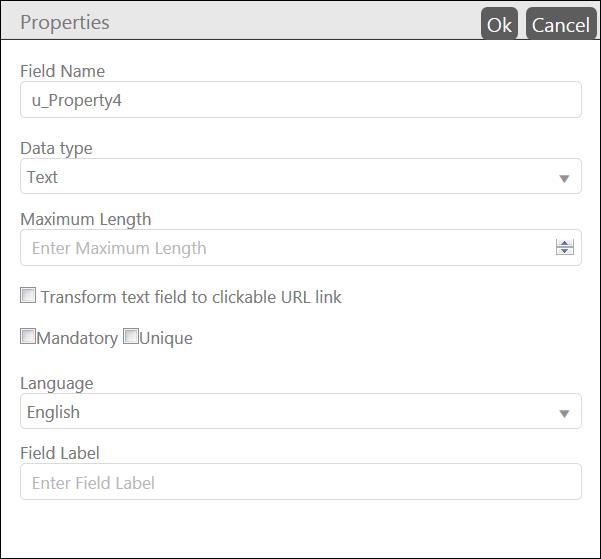
When you click Add new Entity Field button, one row will be added in the entity fields section. This row has all the fields set by default. After the row is added, you need to edit the properties by clicking the particular row. When you click the row, a popup will be displayed where you can edit the properties. Following figure displays such a popup:
Add Entity Field
The popup contains following properties for an entity field:
•Field Name: Enter name of the field which is used to store the name of the entity field in database. In Field Label you define the localized names in different languages.
•Data Type: Select from the available data types: Reference (to define the field as a dropdown list, which contains options derived from the selected reference entity), Boolean, Number, Text (clickable field), Date with Time, Date Only, Multilanguage Text, Image, Html, MultiSelect, TreeView, AddressType and Double.
•Reference Entity / Maximum Length / Decimal Point: This field is displayed based on the selection in the Data Type dropdown list:
o Reference Entity: This field is displayed below Data Type dropdown list if you select MultiSelect, Reference or TreeView in the dropdown list. You can use this option to use other entity as a field in the form of an entity being created. For example, you can use “Asset Type” as a reference entity in “CI” entity. You select the respective entity from the dropdown list. Display field of the selected reference entity will be used as options for the field. Note that in case of Reference data type, the field being added will be displayed as a dropdown list in an entity form.
o Maximum Length: This field is displayed below Data Type dropdown list if you select Text or Multilanguage Text in the dropdown list. You define the maximum number of characters allowed for that field.
o Decimal Point: When you select Double data type, this field is displayed below the dropdown list. You define the number for decimal points allowed in the field. For example, if you define “2” then you can enter value up to two decimal points, e g “150.25”.
•Transform text field to clickable URL link. See section Clickable field.
•Mandatory: You can select this to mark the field as mandatory.
•Unique: You can select this to mark the field as unique.
•Is Auto complete: This field is displayed below dropdown list if you select Reference in the dropdown. If this option is set, then auto complete is used when you search for object. When you type characters in the search field a dropdown displays the objects that corresponds to the input and you can choose an object from here.
•Language & Field Label: You can select the language from the dropdown list to define the Field Label for the selected Language. You first select a Language and then define respective Field Label. Field Labels can be defined for the multiple languages.
After entering the data in all the fields, click OK button available in the header of the popup to save an entity field.
Note: When you add a new field to an entity field permission get value for each role. In current version the new field will be enabled for all roles having view permission on the entity and are connected to current logged in user. For other roles field permissions for the new field is initially disabled.
When a new field is added you have to go throw the roles and update field permissions to match system requirements, see Roles and Permissions.