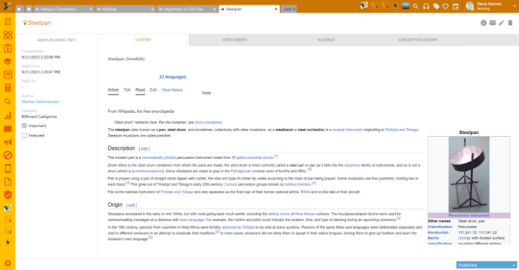
Announcement Form is a detailed view of an Announcement. It contains all announcement information, content, attachment list, audience settings, subscription history and the status.
Announcement Form: View
The Announcement form consists of four main areas:
•Announcement Form Header: Contains Name, Important flag if announcement is marked as important, and action buttons.
•Left panel: General Announcement information, common for all Announcement categories.
•Right panel: Shows announcement content in each language it is created, Attachment, Audience settings and a Subscription history tab.
•Status bar in the bottom right shows the status of the announcement and can be changed accordingly.
Announcement Form Header
In the upper right corner of announcement form, there are the following action buttons: Information, Send email, Edit, and Delete.

Information is basically a tool tip containing brief content of the page.
Edit button opens the announcement in same user interface used when you create an announcement, see Adding new Billboard Announcement.
Send email button opens the form for sending announcements directly to the selected users. Beside the recipients, you can also add body text.
Left Panel
The left panel of the form contains general information (properties) of the Announcement. All fields are common for all categories and are non-editable in this form:
•Created date: Shows created date of the announcement.
•Valid from: Shows date from which the announcement is valid.
•Valid To: Shows date to which the announcement is valid.
•Author: This field contains the name of the user who created the announcement. When you click on username, a popup shows information about the user.
•Category: Shows announcement category.
Right Panel
The right panel of the form contains announcement content (Title and Body) for each language it has been created, Attachments, Audience settings and a Subscription history tab.
In the Attachment tab, you can view, delete, or add files to the announcement.
The attachment tab shows a list of all announcement attachments. It is possible to attach new file by clicking on Attach File button and select a file to upload. You can input Description (optional). Allowed file extensions are defined by system configuration. You will get an error message if you try to attach a file of not allowed type, or if file is too big. See Extension Management|topic=Extension Management;document=Documents\Eng_Settings.docx.
To the right on row is for each document menu in dropdown for Download, Edit or Delete existing attachment file.
•Delete removes the attached file from Announcement. Multiple-delete is available by using the checkboxes left on each row. When you enable one or more checkboxes, Delete link will be shown above the list. The link removes all enabled attachments.
•Edit opens a popup where you can edit the attachment Description.
•Download opens the attached file on your computer.
Within the Audience section you can set permissions access for respected announcements.
Subscription history will give you an overview of all data records when the announcement was subscribed to or sent to the users via direct mail.
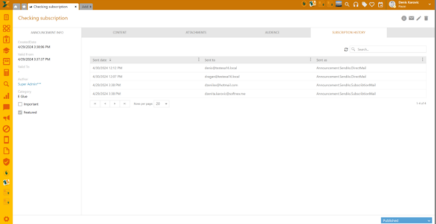
Announcement Form: Subscription history
Search, sort, filter, paging and export features are available similar to other lists in NSP, see General User Interface|topic=General User Interface.
Status bar
Status bar in the bottom right shows the status of the announcement and can be changed accordingly.
•Publish: Visible only when Announcement is in the Pending status.
•Archive: Visible only when Announcement is in the Published status.
•Republish: Visible only when Announcement is in the Archived status.
Since the status of the announcement is implicit, actions Publish, Republish and Archive will manipulate Valid From and Valid To fields.
o Publish: Sets Valid From to Now
o Archive: Sets Valid To to Now
o Republish: Opens popup form where new Valid From and Valid To values can be set.