NSP includes AI in several practical places across the platform, and each location supports a different part of the support process:
•In AI Settings, administrators enable and configure the AI providers.
•In Advanced Ticket View, agents receive summaries, writing help, solution suggestions, and text refinement tools.
•In the tickets AI tab, agents see related tickets, relevant knowledge articles, and suggested actions.
•In SSP Submit Ticket, end users receive immediate AI guidance and related article recommendations before submitting a ticket.
•In the SSP Knowledge Base, users are guided toward related content through Similar Articles.
Together, these features make NSP faster to use, more informative, and more supportive for both agents and end users.
Enabling AI in NSP
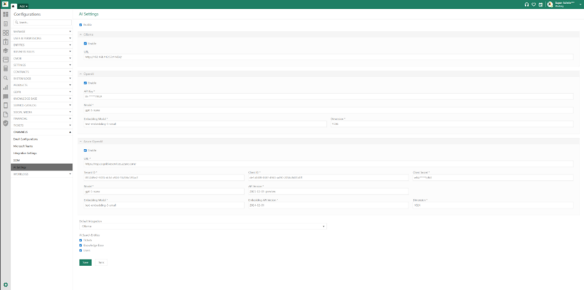
Before users can work with AI summaries, AI writing tools, article suggestions, or AI-generated solutions, AI must be enabled from Configuration > Settings > AI Settings.
Starting point: If AI is not enabled and saved on this page, the AI elements described in the rest of this manual will not be available to users.
NSP supports three AI modules. Ollama is the free internal NSP module. OpenAI and Azure OpenAI are commercial integrations. Each module can be enabled separately, which allows the organization to decide which provider should be available in the system.
|
Provider |
Type |
Purpose in NSP |
|
Ollama |
Free / internal |
Internal NSP AI module for organizations that want an internal AI option. |
|
OpenAI |
Commercial |
External commercial integration that uses an API key, model, and embedding settings. |
|
Azure OpenAI |
Commercial |
Commercial Azure-based integration that uses Azure endpoint and credential settings. |
At the top of the page, the main Enable option activates AI for the system. Below it, each provider has its own Enable option and its own configuration fields. Ollama is configured through its service URL. OpenAI is configured with an API key, model, embedding model, and dimension. Azure OpenAI is configured with its URL, tenant information, client credentials, model details, embedding settings, and API versions.
The Default Integration field determines which provider NSP should use by default. The AI Search Entities section controls which NSP data can be used in AI searches and suggestions. In the provided screen, these entities are Tickets, Knowledge Base, and Users.
After the settings are completed, click Save to store the configuration. The Sync action should then be used so that NSP can synchronize the searchable AI data and apply the latest settings.
Configuration: AI Settings
AI in Advanced Ticket View
The Advanced Ticket View contains the main AI tools used by agents during ticket handling. These tools help the agent understand the ticket faster, write clearer responses, and generate solution guidance directly on the ticket.
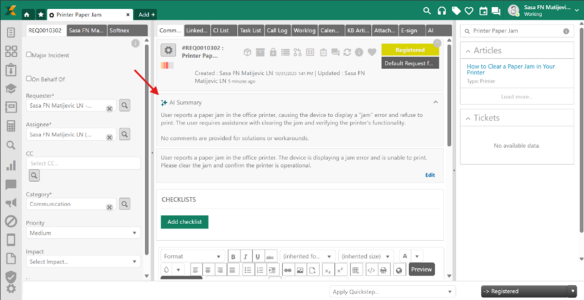
AI Summary
The AI Summary appears near the top of the ticket and provides a short summary of the issue based on the ticket content, i.e. ticket description and comments. Its purpose is to give the agent a quick understanding of the request without having to read the full ticket first. The summary is especially useful when a ticket contains several details or when the agent needs a fast overview before responding.
The summary should be treated as a support feature. It helps the agent start faster, but the original ticket details should still be reviewed before any important decision or communication is made.
Tickets: AI Summary
AI Writing Assistant
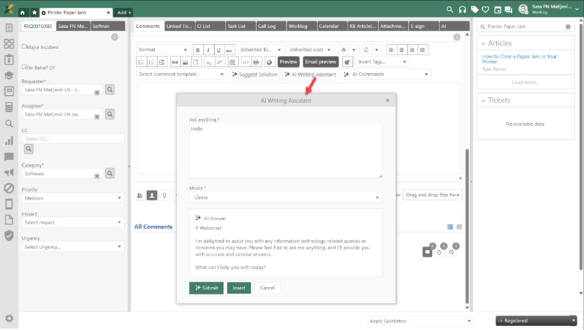
The AI Writing Assistant is available in the comment area. When the agent opens it, a dialog window appears with an “Ask anything” field. The agent can type a request such as asking for a reply, a troubleshooting explanation, or a short response to the requester.
Depending on the configured setup and system version, the dialog may show either an AI Provider selector or a model selector. After the request is entered, the agent clicks Submit. NSP then generates an AI Answer in the dialog. If the result is suitable, the agent can click Insert to place the generated text directly into the comment editor and continue editing it there if needed.
 Tickets: AI Writing Assistant
AI Commands
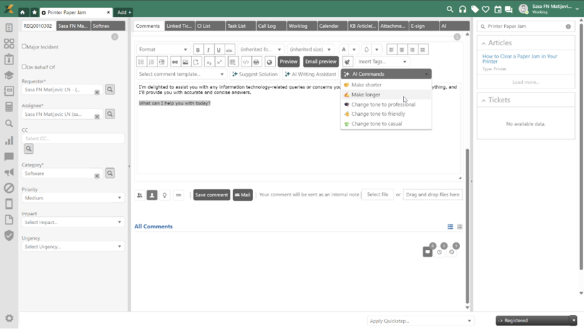
AI Commands are used to improve or restyle text that already exists in the comment editor. This is helpful when the message is correct but needs better tone, length, or wording before it is saved or sent.
The available commands are:
•Make shorter
•Make longer
•Change tone to professional
•Change tone to friendly
•Change tone to casual
These options help the agent adapt the message to the audience without rewriting the content manually.
 Tickets: AI Commands
Suggest Solution
The Suggest Solution feature generates a proposed solution directly in the comment editor. It is designed to help the agent quickly produce structured troubleshooting steps or a first draft of a resolution based on the current ticket context.
Once the solution is generated, the agent can review it, edit it if necessary, and continue with the normal ticket workflow. This means the generated text can still be refined before it is saved as a comment or used in a reply.
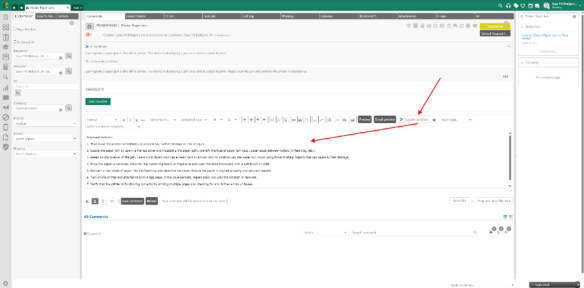
Comment: Suggested Solution
AI Tab on the Ticket
The AI tab collects AI-generated suggestions related to the ticket that is currently open. It is intended to help the agent find relevant history, useful knowledge, and possible next actions without leaving the ticket.
Tickets section
The Tickets section lists tickets that AI considers relevant to the current one. These can be similar incidents, previous requests with related symptoms, or tickets that may contain a useful handling path. The grid gives the agent a quick view of key ticket details such as ID, subject, category, status, requester, assignee, and dates.
Knowledge Base section
The Knowledge Base section displays KB articles that AI considers relevant to the ticket. This helps the agent move quickly from the ticket to documented guidance or known solutions without manually searching the knowledge base first.
Suggested Actions section
The Suggested Actions section presents operational recommendations based on the ticket content. In the provided example, the AI suggests changes such as updating the priority, changing the category, assigning the ticket to a user, or assigning it to a group. These recommendations are designed to support faster and more consistent ticket handling.
The Apply option allows the proposed action to be executed from the AI tab. Agents should still review each recommendation before applying it.
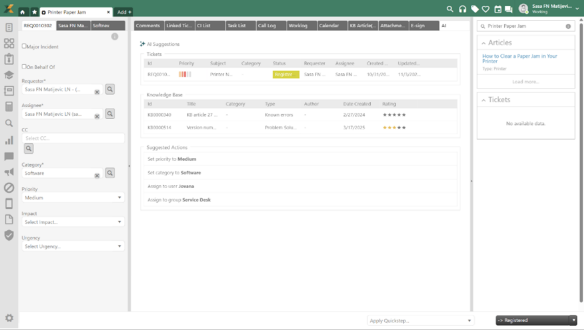 Tickets: AI tab
Important note:
To get the most accurate AI suggestions, it is important that the information in the system is descriptive and relevant. Here are some concrete recommendations:
•Tickets: Use clear and descriptive text in tickets. The more contextual information available, the better the match. A ticket affecting the entire organisation should, for example, be marked with high priority and include a description that clearly reflects the scope of the issue.
•Users: Fill in the description field on the user card with information relevant to ticket handling, such as areas of expertise, role, and responsibilities. This is used directly by the AI when suggesting the most suitable agent.
•Groups: Add group-level descriptions that clearly outline the group's area of responsibility and competence. This improves the quality of group suggestions and helps ensure tickets are routed correctly from the start.
•Categories: Make sure categories have clear and descriptive names and descriptions that reflect the type of tickets they cover. Well-defined categories help the AI better understand the context and improve accuracy across categorisation and other suggestions
Examples:
a) Tickets: User unable to log in to VPN since this morning. The issue affects the entire sales department of approximately 20 users, preventing them from working remotely.
b) Users: IT support agent focusing on hardware issues, software installations, and new user onboarding.
c) Groups: Responsible for network-related incidents, connectivity issues, and infrastructure maintenance.
d) Categories: Covers all issues related to email clients, mail flow, spam filtering, and Microsoft Exchange.
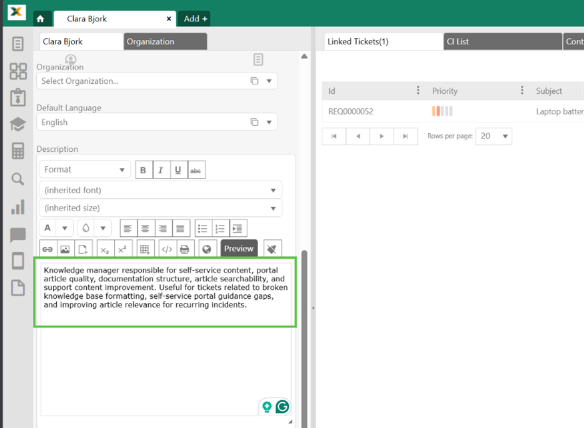
User profile: Description
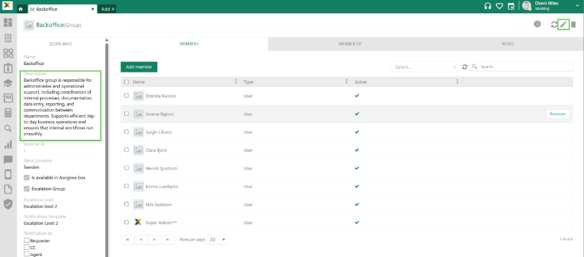
Permision Scopes: Edit group description
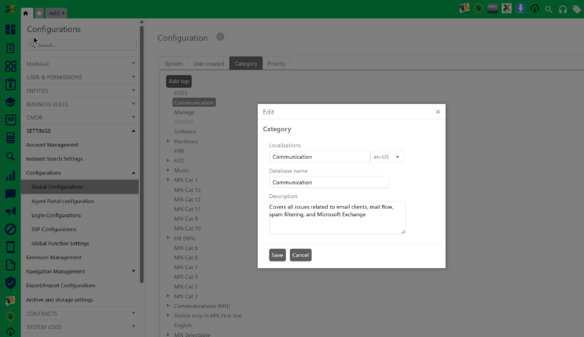
Global Configurations/Category: Edit description
AI in SSP Submit Ticket
On the SSP Submit Ticket page, AI supports the user before the ticket is created. This gives end users immediate guidance and may help them solve the issue without waiting for agent intervention.
Ask AI
After the user enters a subject and any relevant description, the Ask AI option can be used from the Submit Ticket page. This sends the entered issue context to AI so that the system can generate assistance before the ticket is saved.
When Ask AI is clicked, NSP displays an AI Solution area with a proposed solution. The purpose of this section is to give the user practical troubleshooting guidance immediately. In the same result area, NSP also displays Suggested Articles that may help the user continue through relevant knowledge base content.
If the proposed solution or one of the suggested articles resolves the problem, the user may not need to create the ticket at all. If the issue still requires support, the user can continue with Create and Save Ticket after reviewing the AI output.
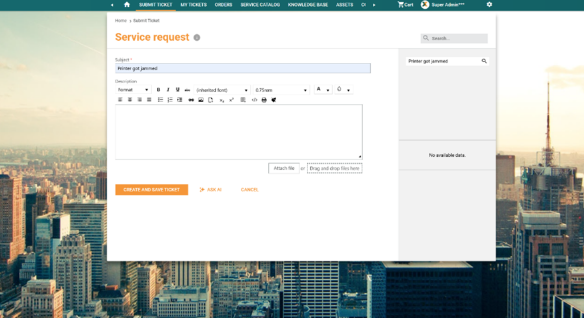
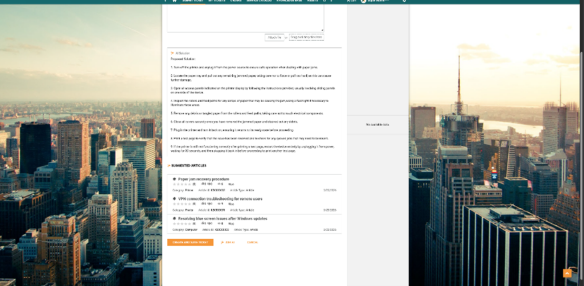
SSP Submit tickets: ASK AI
AI in SSP Knowledge Base View
In the SSP Knowledge Base, the AI helps users continue exploring related content while they are already reading an article.
Similar Articles present other KB articles that are related to the article currently open. This is useful when the user starts with one article but needs a closer match, a more specific troubleshooting path, or another article that covers a related symptom.
By offering related articles directly on the page, NSP improves the self-service experience and reduces the need for repeated searching.
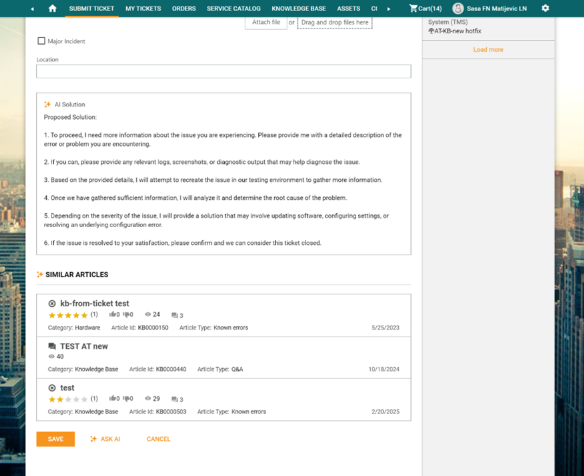
SSP: AI SIMILAR ARTICLES