
After clicking E-sign in main menu, there will be shown list of all documents submitted for your signature, with the filename, submission date and the signed status.
The files are sorted within 3 columns:
•Waiting for me – for files waiting for your signature
•Waiting for others – for files waiting for signatures by others
•Completed
o
Files signed by all parties - Flagged
o
Rejected and Deleted files – Flagged 
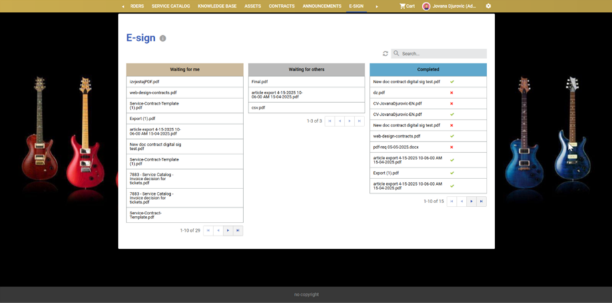
SSP: E-Sign overview
As a signatory, you’ll receive an email or SMS notification when a new document is ready, signed, or rejected by other signatories.
To sign the document, click it to open it. The screen is now split into 3 main parts:
•Upper left side: Document preview
•Right side: List of signatories and signed status
•Bottom left side: Signature options
o Type: Just type in your name using a keyboard
o Draw: Use your mouse or touchpad to sign
o Image: Upload an image of your signature.
After applying the desired signature type, click Sign. You can also reject the document by clicking the Reject button and leaving the remark (which is mandatory).
Other signatories of the file you signed will see your signature status in their E-Sign overview.
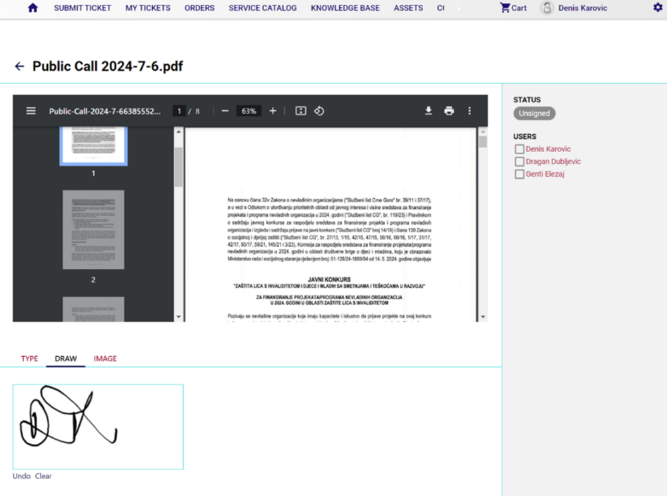
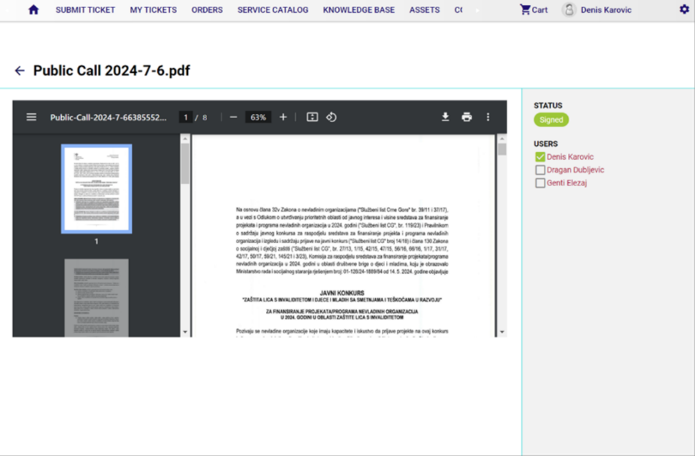
SSP: Applying the digital signature
You can download original and signed versions of the document from the grid menu.
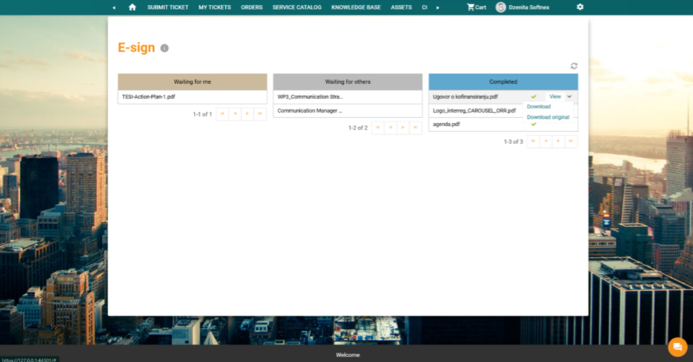
SSP: Grid menu actions