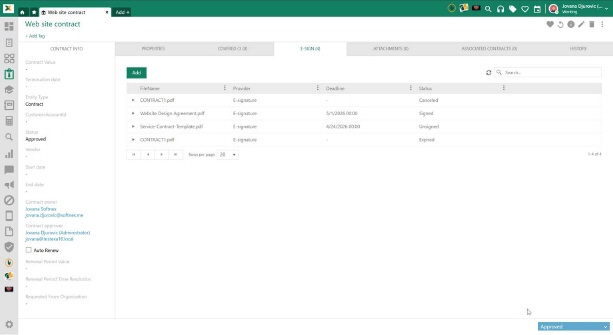
The digital signature can be applied to any type of document used in the NSP, or any attachment within CMDB, Contracts, Tickets, and Knowledge Base.
Agent portal - tab E-SIGN
Tickets, Contracts, CIs, and Knowledge Base articles have a particular tab E-Sign.
Agent portal: E-Sign View
The tab contains a list of all document templates related to the entity.
Depending on the document status, different actions are allowed rightmost on the row:
Unassigned
•Sign: Displayed only if the logged user is set as signer. Opens a pop-up with a document where you can sign or reject it
•Download: Use to download a signed document
•Download original: Use to download original document
•Edit: Opens form in pop-up, same form as used when a new digital signature document is added. Here you can change all properties.
•Delete: Shown only for Unassigned documents. Use to delete e-sign document.
Signed
•View: Displayed only for a signed document. At the bottom of the view, you can find the signed hash number.
•Download original: Use to download the original document
•Download: Use to download a signed document
Canceled
•Download: Use to download original document
Add E-SIGN document
Go to any of the above-mentioned entities on the Agent portal, for example, Contracts: select any contract and go to tab E-sign, click Add and the signature form will pop up. The form has 4 fields:
1. File path – Here, you will update your document. The only allowed format is PDF. You can also preview the uploaded document or download it.
2. Signature – Here, you will choose from the available signatures
3. Users – Enter emails of people who need to sign the contract (once you start typing, autocomplete will activate). Autosuggested signers will be prefilled.
4. Deadline - Sets the final due date and time for completing the signature process. If the document is not signed by the configured deadline, its status is automatically updated to Expired. When a deadline is set, additional notification options become available. These options allow you to configure when the deadline notification will be sent:
5. Enable reminder every day -This option enables daily notifications starting from the configured point until the deadline is reached. You must define Reminder interval in days , which determines how often notifications will be sent.
6. Enable reminder days before - This option enables a one-time or scheduled reminder sent a specific number of days before the deadline. You must define Reminder day before the number of days before the deadline when the reminder should be sent.
7. Note – This is an optional field and should be used to add more clarification regarding the document to be signed.
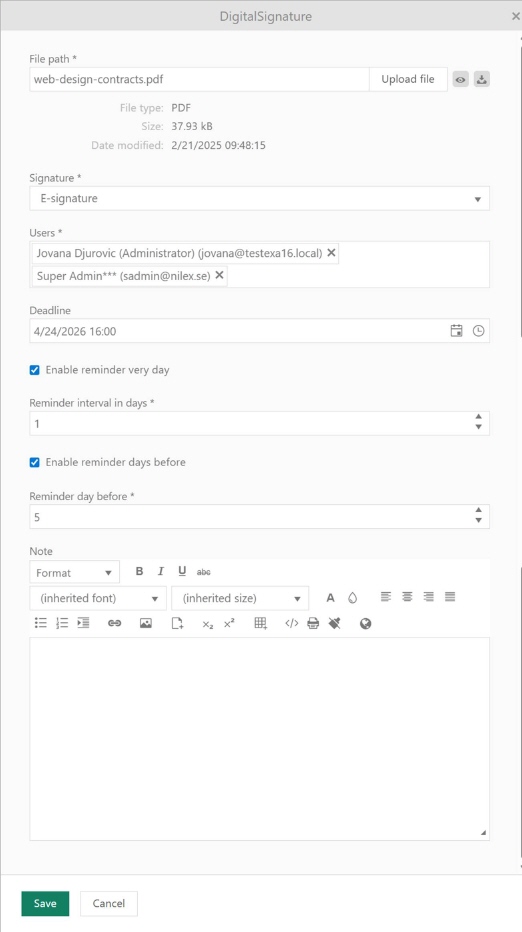
Agent portal: Digital signature form
Once the document is submitted for signatures, you can track its status from the E-sign tab.
E-SIGN in Document template
You can also submit documents for signature via the Document templates. Open any contract, ticket, KB, etc, click on the 3-dot menu, choose the Document templates and select from the available templates in the list. Right click on the grid actions and select E-sign.
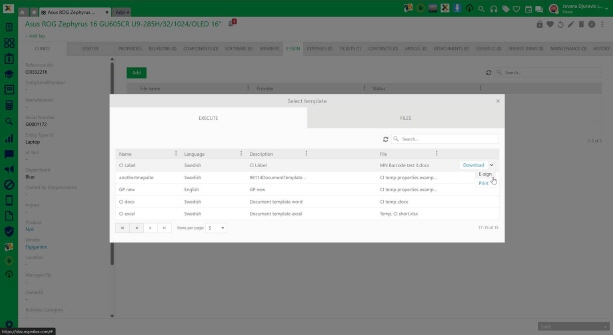
E-sign via Document templates