A Kanban board is an agile project management tool designed to help visualize work, limit work in progress, and maximize efficiency. A Kanban view for tickets will give you a better overview of the workload within your organization.
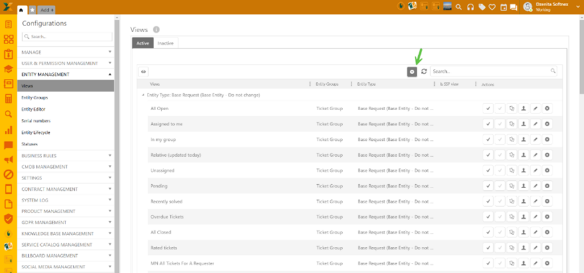
To enable Kanban Ticket View, go to:
Configurations > Entity Views > Views for tickets and tasks > Add new record (+)
Entity views for tickets and tasks
Once the form is open, follow these steps:
1. In Entity Group, select Ticket group
2. In Entity type, select Ticket type from the list (e.g. Request)
3. Add Database name for your view
4. In Localizations name your ticket view
5. Check the option “Is kanban view”
6. In Kanban Column, select the property for which you want to create a Kanban view (e.g. Status, Priority, etc.)
7. Choose Kanban column sort criteria, available options are: By count and By property
8. Choose Kanban column sort direction, available options are Ascending and Descending
9. If you choose the By Property sort criteria in step 7, the field Kanban column sort property will be enabled. The available options depend on the chosen column. Created Date and Display Name are available for all columns. Columns such as Priority, Urgency, and Impact also have an additional Level option. If the column has custom properties, they will all be available for sorting as well.
10. Sort order: Default sorting within one Kanban column is by Descending Updated date, but this can be changed on the level of a view.
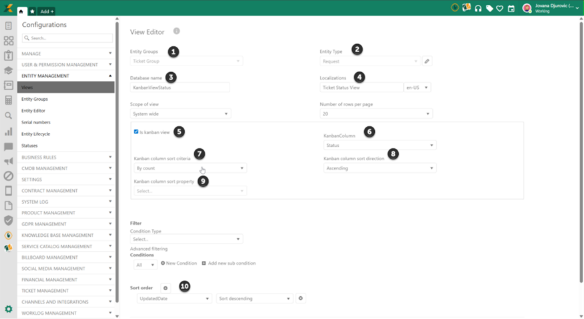
Create a Kanban Ticket view form
Now that you created a Kanban view, go to the Ticket Views on the AP, and find the created view:
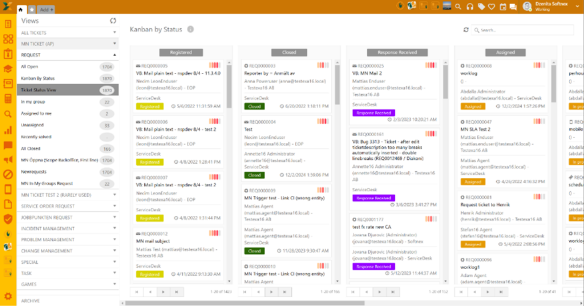 Kanban Ticket
view
Kanban Ticket
view
You can drag and drop any ticket from column to column, provided changing statuses, agents, etc., is allowed by the general application settings.
Note: In some cases, an automatic refresh may be delayed, when there are many tickets. In this case, you can use a manual refresh above the grid.
When a ticket is closed from the Kanban view, the behavior is consistent with changing the ticket status from the ticket view. The Close Ticket Comment popup is displayed based on the configured system settings.