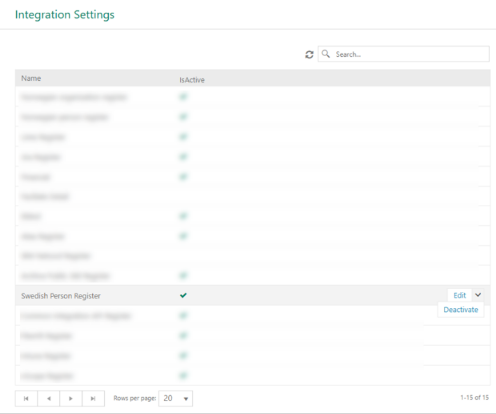
Navet is Skatteverket’s (Swedish Tax Agency) population register service. This integration lets NSP users search for Swedish residents from person management forms. Two search modes exist:
•Personpost: Look up a person by 12-digit personnummer (Swedish personal identity number). Returns name, address, birth date, civil status, and citizenship.
•Namnsokning: Search by name, address, city, postal code, birth date, or gender. Returns up to 100 matching results.
Select a person from search results to auto-fill NSP form fields (name, address, birth date, SwedishPersonalNumber).
•Before you begin, confirm you have:
•Admin access to NSP Admin Portal.
•A client certificate (.p12 file) for your organization. For test environments, this is Kommun A certificate from Expisoft.
•PIN code or password for your certificate.
•Your Organization Number (OrgNr) and Order ID (BestallningsId) from Skatteverket.
•Access to your server running NSP (for certificate installation).
Certificate Setup
Navet requires a client certificate for authentication. Install it on your server running NSP. This section covers certificate setup.
Installing Certificate
Install your .p12 certificate into Windows Certificate Store on your server.
Option A: Using Windows GUI
1. Double-click your .p12 file on your server.
2. Select Local Machine and click Next.
3. Enter PIN code or password and click Next.
4. Check Mark this key as exportable.
5. Select Place all certificates in following store and browse to Personal.
6. Click Finish.
Option B: Using PowerShell (as Administrator)
$password = ConvertTo-SecureString -String "YOUR_PIN_CODE" -AsPlainText -Force
Import-PfxCertificate -FilePath "C:\path\to\certificate.p12"
-CertStoreLocation Cert:\LocalMachine\My
-Password $password -Exportable
Setting Private Key Permissions
This step matters most. It is also most common cause of issues.
When you import a certificate, Windows stores its private key as a file. By default, only your importing user account reads this file. NSP runs under a different account and needs Read access.
How to grant access:
8. Open mmc.exe as Administrator on your server.
9. File > Add/Remove Snap-in > Certificates > Computer Account > Local Computer > OK.
10. Go to Personal > Certificates.
11. Right-click your certificate (Kommun A) > All Tasks > Manage Private Keys.
12. Click Add.
13. Type Everyone (for test) or your specific application pool identity (for production).
14. Click Check Names > OK.
15. Select Read permission. Click OK.
Alternative: PowerShell script (as Administrator)
$cert = Get-ChildItem Cert:\LocalMachine\My |
Where-Object { $_.Thumbprint -eq "YOUR_THUMBPRINT" }
$rsa = [System.Security.Cryptography.X509Certificates.
RSACertificateExtensions]::GetRSAPrivateKey($cert)
$keyName = $rsa.Key.UniqueName
$file = Get-ChildItem "C:\ProgramData\Microsoft\Crypto"
-Recurse -Filter $keyName -ErrorAction SilentlyContinue
$acl = Get-Acl $file.FullName
$rule = New-Object System.Security.AccessControl.
FileSystemAccessRule("Everyone","Read","Allow")
$acl.AddAccessRule($rule)
Set-Acl $file.FullName $acl
For your settings, replace Everyone with your specific application pool identity (e.g., IIS AppPool\YourAppPoolName).
Getting Thumbprint
You need certificate thumbprint (40-character hex string) to configure NSP. Run this in PowerShell:
Get-ChildItem -Path Cert:\LocalMachine\My
|
Format-List Subject, Thumbprint
Find your certificate (e.g., CN=Kommun A) and copy its 40-character Thumbprint value.
Example: B120738618B5426316C905AC58F6DB61C5C4423C
Verifying Setup
Run this PowerShell command on your server to verify everything works:
$cert = Get-ChildItem Cert:\LocalMachine\My
|
Where-Object { $_.Thumbprint -eq
"YOUR_THUMBPRINT" }
Invoke-WebRequest
-Uri
"https://www2.test.skatteverket.se/na/na_epersondata/V4/personpostXML"
-Certificate $cert -UseBasicParsing
Expected result: StatusCode: 200
If you get an error, check:
|
Error |
Fix |
|
Could not create SSL/TLS secure channel |
Private key permissions missing (Section 3.4) |
|
Certificate not found |
Certificate not installed or wrong thumbprint (Section 3.2) |
|
Chain validation failed |
Root CA not installed (Section 3.3) |
Configuring Swedish Person Register
Configuration > Channels > Integration Settings > Swedish Person Register
Integration Settings: Swedish Person Register
Fill in following fields in settings dialog:
Certificate Thumbprint
•Paste your 40-character thumbprint from
o Example: B120738618B5426316C905AC58F6DB61C5C4423C
•Organization Number
o Your organization number (OrgNr) registered with Skatteverket. For test: 162021004748 (matches Kommun A certificate).
•Order ID (BestallningsId)
o Order ID assigned by Skatteverket. For test: 00000236-FO01-0001.
•Personpost Service
o Check Enable Personpost and enter endpoint URL.
•Namnsokning Service (optional)
o Check Enable Namnsokning and enter endpoint URL.
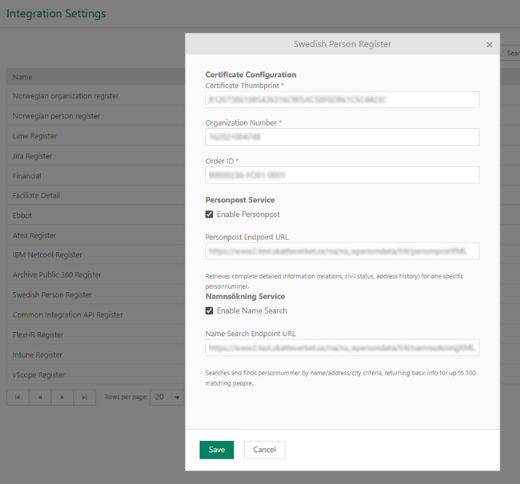
Swedish Person Register Configuration
Register search
Once configured, Swedish person search panel appears in person management forms. It has two tabs depending on which services you enable.
Personpost (Search by ID)
7. Open a person form in NSP.
8. Click Personpost tab in Swedish person search panel.
9. Enter a 12-digit personnummer in format YYYYMMDDXXXX.
10. Search button becomes active when you enter a valid 12-digit number.
11. Click Search.
12. Person details appear in results grid.
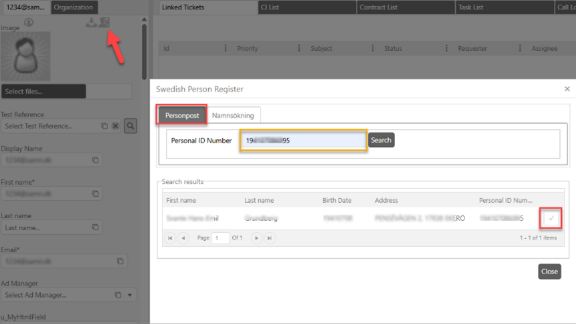
Navet: Search by ID
Results grid show:
|
Column |
Description |
|
First Name |
Given name(s) (Fornamn) |
|
Last Name |
Surname (Efternamn) |
|
Birth Date |
Date of birth (Fodelsedatum) |
|
Address |
Full address with postal code and city |
|
Personal ID |
The 12-digit personnummer |
|
Select |
Button to copy data to the form |
Namnsokning (Search by Name)
1. Click Namnsokning tab.
2. Enter one or more search criteria:
|
Field |
Description |
|
First Name |
Given name (optional) |
|
Last Name |
Surname or middle name |
|
Address |
Street address |
|
City |
City name (Postort) |
|
Postal Code From / To |
5-digit postal code range |
|
Birth Date From / To |
Date range (max 1 year) |
|
Gender |
Male (M) or Female (K) |
3. Search button becomes active when you enter at least one criterion.
4. Click Search.
5. Up to 100 matching people appear in grid.
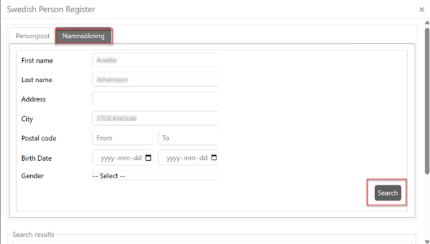
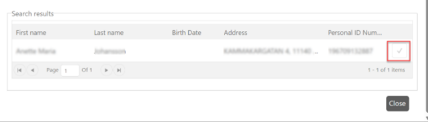
Navet: Search by ID
Search rules: Provide at least one of last name, city, postal code range, or birth date range. First name alone is not sufficient. If search criteria are too broad, Skatteverket rejects it with a SEARCH_TOO_BROAD error.
Copying Results to a Form
After searching, click Select on any row. Following form fields auto-populate:
•First Name
•Last Name
•Full Name / Display Name
•Swedish Personal Number (personnummer)
•Birth Date
•Address (with address lookup)
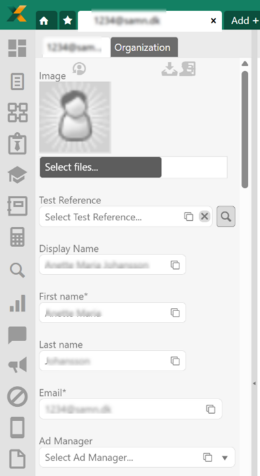
Copying Results to a Form
Known Issues and Solutions
1. Private Key Permissions (Most Common)
Symptom: Could not create SSL/TLS secure channel error, or ERR_BAD_SSL_CLIENT_AUTH_CERT in browser.
Cause: Certificate is installed and private key exists, but application account does not have permission to read private key file. This is a file-level Windows permission issue, not a certificate issue.
How we found this: Integration worked on a developer laptop but failed on a server. Certificate was installed, private key was present (HasPrivateKey: True), and root CA was installed. Connection still failed. PowerShell testing showed admin users connected fine but non-admin users failed. Root cause: private key file (stored under C:\ProgramData\Microsoft\Crypto\) only had permissions for SYSTEM and Administrators. Application account was not listed.
Solution: Follow Section 3.4 to grant Read permission on private key file.
Quick diagnostic command:
# Run
as Administrator on the server:
$cert =
Get-ChildItem Cert:\LocalMachine\My |
Where-Object { $_.Thumbprint -eq "YOUR_THUMBPRINT"
}
$rsa =
[System.Security.Cryptography.X509Certificates.
RSACertificateExtensions]::GetRSAPrivateKey($cert)
$keyName =
$rsa.Key.UniqueName
$file =
Get-ChildItem "C:\ProgramData\Microsoft\Crypto"
-Recurse -Filter
$keyName -ErrorAction SilentlyContinue
Get-Acl $file.FullName |
Select -Expand Access |
Format-Table IdentityReference, FileSystemRights
If application account (or Everyone) is not listed with Read access, fix permissions per Section 3.4.
2. Browser vs Application usage
Symptom: Browser shows ERR_BAD_SSL_CLIENT_AUTH_CERT, but application might still work.
Cause: Chrome and other browsers only use certificates from CurrentUser store for client authentication, not from LocalMachine. Since you installed certificate in LocalMachine\My (correct for your application), browsers do not find it.
Solution: Do not rely on browser testing. Use PowerShell verification command from Section 3.6 instead. If PowerShell returns StatusCode: 200, your application works.
Troubleshooting
|
Problem |
Cause |
Solution |
|
Could not create SSL/TLS secure channel |
Private key permissions |
Grant Read on private key file (Section 3.4) |
|
ERR_BAD_SSL_CLIENT_AUTH_CERT in browser |
Browser uses CurrentUser store, not LocalMachine |
Test with PowerShell instead (Section 3.6). Browser test is unreliable. |
|
Certificate chain validation fails |
Root CA not installed |
Install ExpiTrust Test CA v8 root certificate (Section 3.3) |
|
Certificate not found by NSP |
Wrong thumbprint or certificate not in LocalMachine\My |
Verify thumbprint is exactly 40 hex characters. Verify cert is in LocalMachine\My. |
|
HasPrivateKey: False |
Certificate imported without private key |
Re-import the .p12 file and check "Mark key as exportable" |
|
SOAP Fault: OrgNr mismatch |
Organization Number does not match certificate |
Use the OrgNr from the certificate Subject (e.g., 162021004748 for Kommun A) |
|
INSUFFICIENT_CRITERIA on name search |
Search criteria too vague for Skatteverket |
Provide at least: last name, city, postal code range, or birth date range |
|
SEARCH_TOO_BROAD |
Too many matching results |
Add more specific criteria to narrow the search |
|
Ping fails to test server |
Ping uses ICMP, not HTTPS. ICMP may be blocked. |
Use: Test-NetConnection -ComputerName "www2.test.skatteverket.se" -Port 443 |
|
Works on dev laptop, not on server |
Usually missing root CA or private key permissions |
Follow the complete setup: Sections 3.2 through 3.6 |