NSP Nilex Service Platform integration with TietoEVRY Public 360 provides seamless archival system connectivity for automated document management. This integration automatically transfers support tickets created in Nilex to the Public 360 archive system, creating new cases when tickets are generated and ensuring complete archival of all communications and attachments when tickets are closed.
A) Setup
Configure Integration Settings
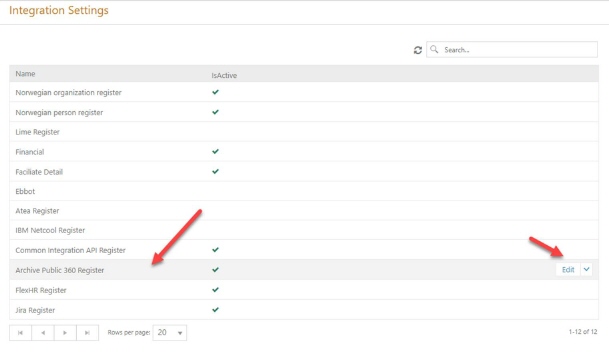
Navigate to Configurations > Integration Settings from the NSP Nilex agent panel. Locate Archive Public 360 Register in the available integrations list and click the Edit button.
Complete following parameters in configuration window,
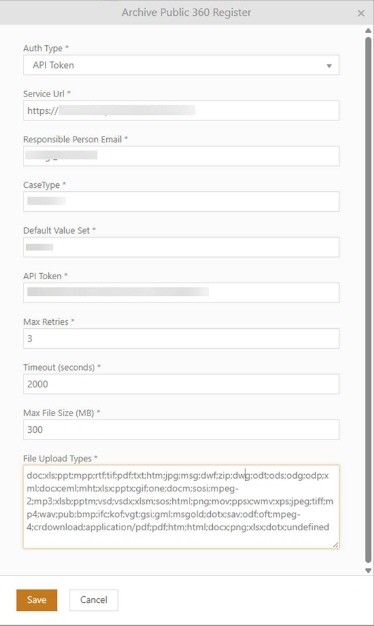
Required Parameters:
•Auth Type: Select either API Token or OAuth2
•Service URL: Enter Public 360 API endpoint address
•API Token: Enter authentication token required for API access
•Responsible Person Email: Email address of system administrator
•CaseType: Custom parameter defining case type
•Default Value Set: Default value set to be used in Public 360
•Max Retries: 3 (maximum retry attempts for failed requests)
•Timeout (seconds): 2000 (timeout duration for API calls)
•Max File Size (MB): 300 (maximum uploadable file size)
•File Upload Types: List of accepted file formats
Edit Entity Form
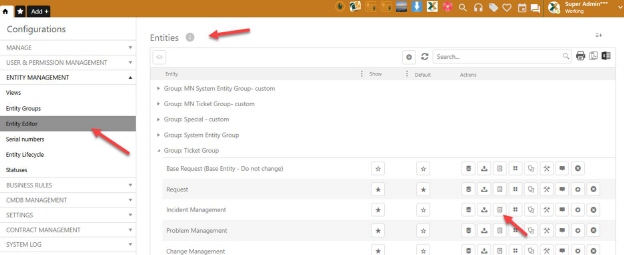
Navigate to Entity Management > Entity Editor. Select Incident Management from system entities list and click Edit Entity Form.
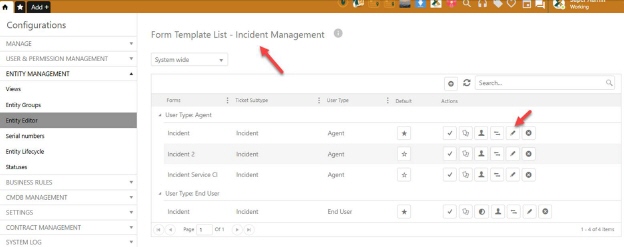
In Form Template List screen, select Incident template from User Type: Agent category and click edit icon.
In Form Template Builder screen, locate ArchivePublicCrmReference in Controls list on left side. Drag this control to form area on right side. Position control in an appropriate location for optimal user experience.
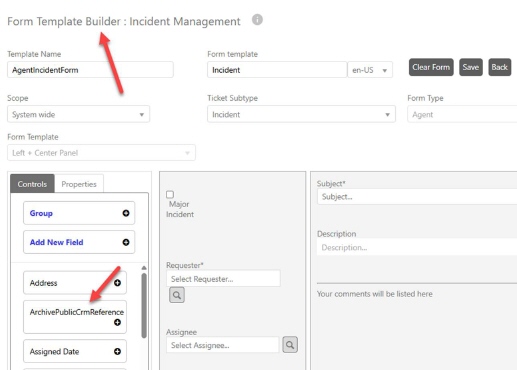
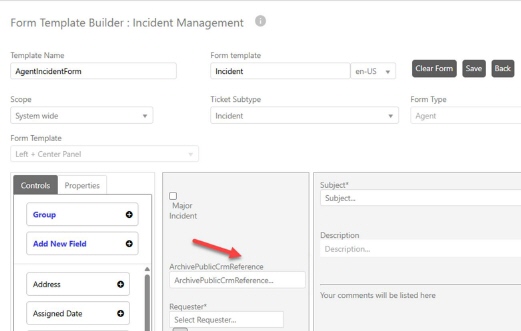
Then, save changes using Save button and return to previous screen with Back.
Configure Triggers
Navigate to Configurations > Business Rules > Event Triggers. Click Add to create a new trigger.
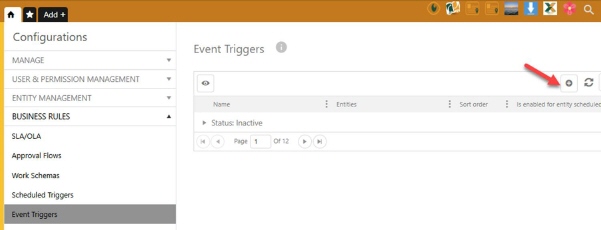
Complete following information in Event Trigger Configuration form:
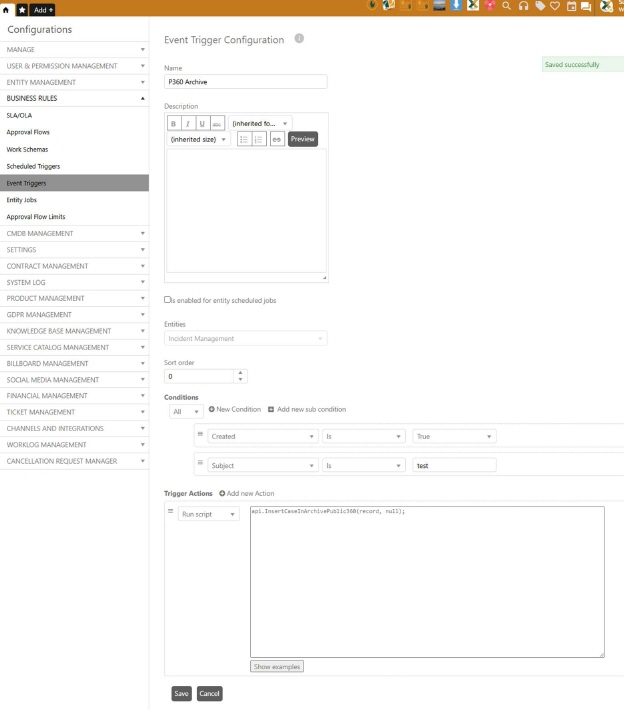
* Basic Trigger Settings:
•Name: P360 Archive (or your preferred descriptive name)
•Description: Trigger for Public 360 archive integration
•Entities: Select Incident Management from dropdown
•
* Condition Settings:
In Conditions section, click Add New Condition to add following conditions:
1. Created is True (trigger when ticket is created)
2. Subject is test (for testing purposes, can be modified later)
* Trigger Action:
In Trigger Actions section, click Add new Action:
- Action Type: Run script
- Script: api.InsertCaseInArchivePublic360(record, null);
Then, save trigger settings using Save button.
Create Test Ticket
Navigate to Incident Management from main menu and click Add to create a new ticket. Verify that ArchivePublicCrmReference field you previously added is visible on form. Enter following information for testing:
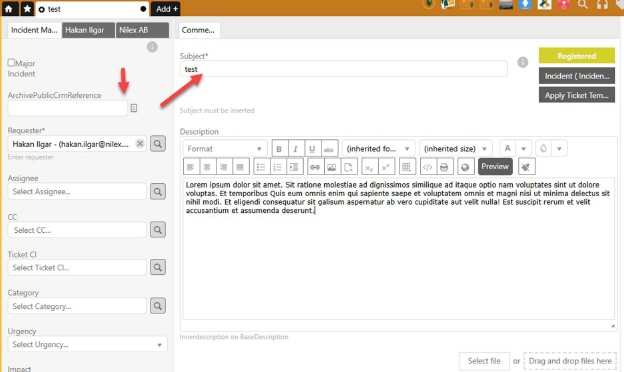
Complete ticket information and click Save. system will automatically check trigger conditions and communicate with Public 360 API.
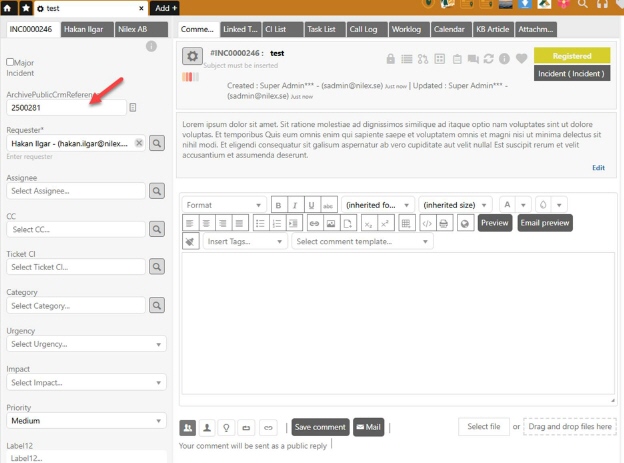
After successful integration, ArchivePublicCrmReference field will display case number returned from Public 360.
1. View Integration Logs
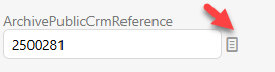
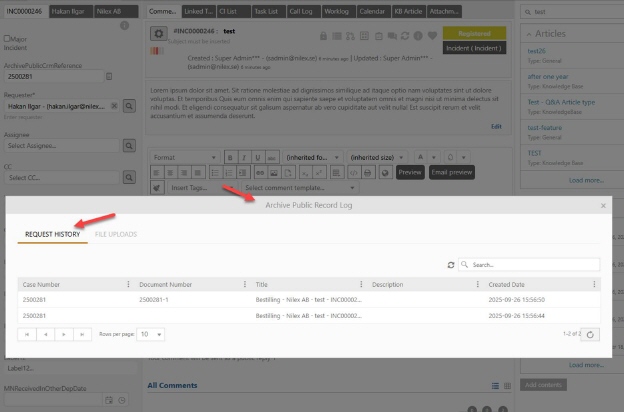
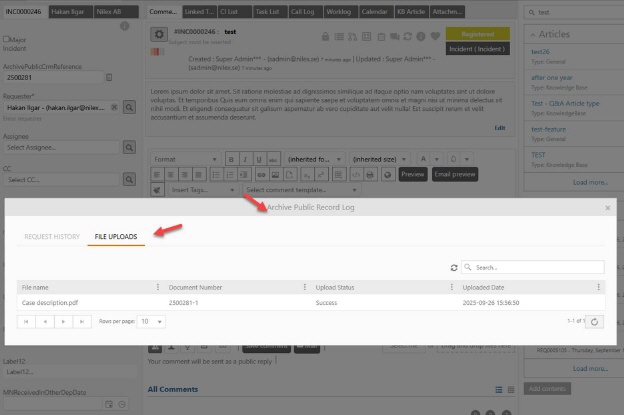
Click log icon next to ArchivePublicCrmReference field. Archive Public Record Log popup window will open.
In REQUEST HISTORY tab, you can view following information:
•Case Number: Ticket number in Nilex
•Document Number: Document number in Public 360
•Title: Title of archived document
•Description: Document description
•Created Date: Creation date
Switch to FILE UPLOADS tab to check file upload details.
B) System Operations
System operates through two main phases to manage document archiving:
Initial Phase:
•Agent opens ticket and decides archiving action
•Creates new Public 360 case or connects to existing case using reference number
•Automatic reference number storage in Nilex
Final Phase:
•Triggers when ticket status changes to "resolved"
•Collects all communications from ticket lifecycle
•Transfers complete archive package to Public 360
Document Categorization
System automatically categorizes three communication types based on source:
•Incoming Documents: All communications from end users
•Outgoing Documents: Public comments and solutions by agents
•Internal Memos: Private notes and internal correspondence
Reference Management
•New Case: Empty ArchivePublicCrmReference field creates new Public 360 case
•Existing Case: Manual reference entry connects to existing Public 360 case
•Automatic Update: Public 360 returns reference number and saves to Nilex automatically
Archive Timing
System waits until ticket closure to transfer all content rather than sending individual communications during process. This approach collects complete ticket history, categorizes each element appropriately, and sends comprehensive archive package to Public 360.
Common Integration Issue
Sample Issue:
Likely, Integration fails when creating cases in Public 360 due to duplicate ExternalId combinations. system returns "Unable to create Case due to there already exists one with ExternalId 'REQ0000011' and ExternalId.Type 'Nilex'" error because same ticket number and system type combination already exists in Public 360 test environment. So, system does not allow creating a new file with the same combination.
Solution:
Change "CaseType" parameter in NSP Nilex configuration from "Nilex" to a unique value like "NilexProd", "NilexTest", or "NilexNORAD". This creates a different ExternalId.Type combination in Public 360, preventing duplicate case creation errors. configuration change resolves issue without requiring any modifications on Public 360 side.