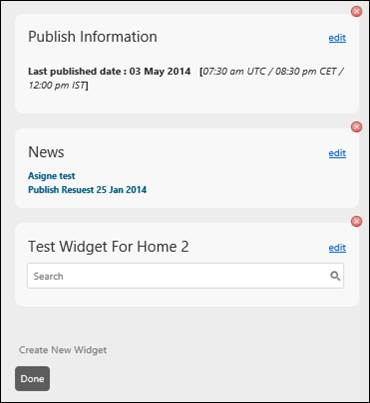
The widget is small part displayed in a web page. It gets and displays information from Forum. Widgets are provided under Home, Knowledge base, Submit a Ticket and Check your existing Tickets tabs in Self Service Portal. Right portion of each page displays the widgets created for that respective page.
Widget Panels
Click on  icon to create or edit a widget.
Clicking on it will display Create New Widget link
and existing widgets with two options – Edit and
Delete.
icon to create or edit a widget.
Clicking on it will display Create New Widget link
and existing widgets with two options – Edit and
Delete.
Clicking Create New Widget link will open a page displaying various types of widgets. Following types are currently supported in NSP:
•Widget from Knowledge base: Create a widget which displays forum articles. There is also an option to display search bar only rather than entire list of articles.
•Plain Text: Select this type of widget to display any kind of announcements on Self Service Portal. This type of widget will only display text.
•Recently changed Tickets: Displays 3 tickets which are recently updated by logged in user.
•Five most recent: Display top five tickets which are recently updated. The behavior of this widget is similar to the Recently changed Tickets except five tickets are displayed here.
•Show related Tickets: Select this type of widget to display tickets which are requested by logged in user.
•Article statistics for viewing: Displays the statistics stating how many users have viewed the respective forum articles.
•Article statistics for votes: Displays the statistics stating how many users have liked or unlike the respective forum articles.
•Article statistics for comments: Displays the statistics stating how many users have commented on the respective forum articles.
•Quick buttons: In this widget you can create a matrix of quick buttons to get quick access to a form for submitting a ticket or open a website.
Click on any type from the above available types to create a widget of that type. The Create new widget form is different due to which widget type you have selected.
Create New Widget
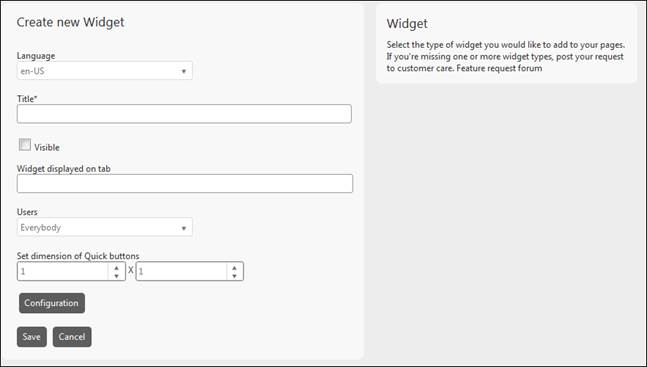
You need to enter following information in form Create New Widget:
•Language: This field is used to add localization to the widget content. You need to select language from the dropdown and then have to add all the widget details for the selected language.
•Title: Enter title of the widget for the selected language.
•Visible: Enable this field to define that widget Title should be visible.
•Widget displayed on tab: Select tabs from the dropdown on which the new widget should be displayed. Four options are available: Home, Knowledge base, Submit a Ticket and Check your existing Tickets. For Quick buttons widget the dropdown contains only tabs not already having a Quick buttons widget defined. This means if you want to define a new Quick buttons widget for a tab you have to delete the old one first.
•Users: Select from the dropdown to whom the widget should be displayed (Everybody, Logged in users or Agents only).
•Only Search: This option is only available in Widget from Knowledge base widget type. You can enable this field to provide only search functionality in the widget. If this field is enabled, only search bar and Title (if Visible) will be displayed in the widget. Search bar is used to search articles in Forum.
•Forums: This option is only available in Widget from Knowledge base, Article statistics for viewing, Article statistics for votes and Article statistics for comments types. In this field, you need to select a forum stream. Articles of the selected forum stream will be displayed in a widget if you have selected Widget from Knowledge base widget type. In case of other widget types - Article statistics for viewing, Article statistics for votes or Article statistics for comments, a graph will be displayed in a widget representing the respective stats for the selected forum stream. The options of a dropdown list will be filtered based on the type of users selected in Users field. Note that this dropdown list is displayed in the widget type Widget from Knowledge base only if Only Search field is disabled.
•Description: In this field, you need to specify the content of the widget. This field is displayed only when you had selected Plain Text widget type. click Preview button to preview the content.
•Set dimension of Quick buttons: This option is available only for Quick buttons widget type. Defines the size of Quick buttons matrix. First field specifies number of columns, second field number of rows.
•Configuration: This button is shown only for Quick buttons widget. Opens a popup where you configure the Quick buttons. See Quick buttons configuration.
|
After filling out all information, click Save button to save the details and create a widget. |
When widgets are displayed in edit mode, each widget has a link; Edit, and a button; Delete. Edit will open Edit Widget form, similar to Create New Widget, but with information already filled. Delete ask for confirmation before the widget is deleted.
When changes done in widgets, press Done to display widget panels in normal mode.