 in the NSP Mobile Details page. Add Comment page is displayed. In this page you can
enter comment text, attach files and select if comment should be an internal
note (Private) or a Public reply.
in the NSP Mobile Details page. Add Comment page is displayed. In this page you can
enter comment text, attach files and select if comment should be an internal
note (Private) or a Public reply.Tap Add Comment button
in the NSP Mobile Details page. Add Comment page is displayed. In this page you can
enter comment text, attach files and select if comment should be an internal
note (Private) or a Public reply.
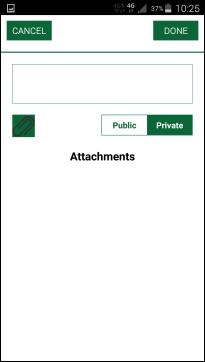
Add Comment
Enter the comment text in the text box.
Just below the text field, Attachment button  is provided. Using this button, you can
attach one or more images for reference. When you taps this button, a small
popup will be opened above the current comment screen. The popup contains two
options; Camera and Gallery. Using Camera
option, you can attach image by taking picture from the device. When you chose
this option, the device built in camera will be opened and you can take the
photo. When you chose Gallery, the built in
gallery view is displayed containing all the pictures available on the device.
You can choose any image from the gallery to attach with the comment. To cancel
the process, just press the back button of your device.
is provided. Using this button, you can
attach one or more images for reference. When you taps this button, a small
popup will be opened above the current comment screen. The popup contains two
options; Camera and Gallery. Using Camera
option, you can attach image by taking picture from the device. When you chose
this option, the device built in camera will be opened and you can take the
photo. When you chose Gallery, the built in
gallery view is displayed containing all the pictures available on the device.
You can choose any image from the gallery to attach with the comment. To cancel
the process, just press the back button of your device.
A switch button is provided to select the type of comment. Button has two options; Public and Private. When Public option is selected, the comment is displayed to all the users including End Users. Private option doesn’t allow End Users to see the comment.
Tap Done button to post the comment to NSP.