A Task Template is a sequence of tasks defined to be used to solve a specific type of ticket. When defining the template the order tasks needed to be completed can be specified. This makes it easy to keep track of the stages of work when solving the ticket.
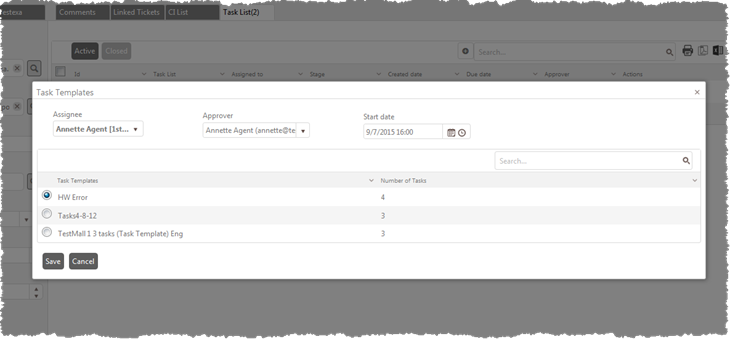
When displaying the Task tab of a ticket you can add tasks from a task template using the Task Template button. A popup is opened containing a list of available templates with a radio button for selection and a column showing the number of tasks in the template. The form also has input fields where Assignee, Approver and start time for the first tasks in the template should be specified:
Task Templates
1. Select Assignee in the dropdown (default, you can change Assignee for the individual tasks in the task list when you have created the tasks).
2. Select Approver of the tasks in the dropdown. If you select Approver as the same person as Assignee, or you don´t select Approver (None), the Approver function not has to be used. Then the task will be automatically closed when it is completed. To get this functionality a system setting is required, setting Complete stage to close the task. This setting is done in Edit Stages function.
3. Select start time (Date and Time) for the task sequence.
4. Check the template you want to use and click Save to create the tasks.
The task list is updated with the new tasks created from the template:

Task List
The first task in the sequence and all tasks not having any dependencies to other task are set to stage New, all task having dependencies to other tasks is set to stage Pending. Due dates for tasks are calculated from Start date of the first task considering the Work Scheme for the Assignee.
When the first task is completed, next task in sequence automatically is set to stage New, and so on. To get this functionality a system setting is required, setting Complete stage to close the task.
You can open task (Edit) by clicking somewhere on the row.
Following actions buttons are displayed:
•Reassign: This action displays a dropdown lists inline the grid for selecting Assignee and Stage.
•Comment: Opens a comment textbox in the list to view comments connected to the task. You can add a comment to the task. The comment will be sent as a public reply.
•Edit: Used to edit the task details. When you click this button, task form will be displayed inline in the grid enabling you to edit and update the task details. If you click somewhere else on the row Task Detail form will be opened.
•Link: If this action is available the task has dependencies to other tasks. A Dependent Task List is displayed; the list contains tasks needed to be completed before this task.
•Delete: This action deletes the task.