Translation Management Tab:
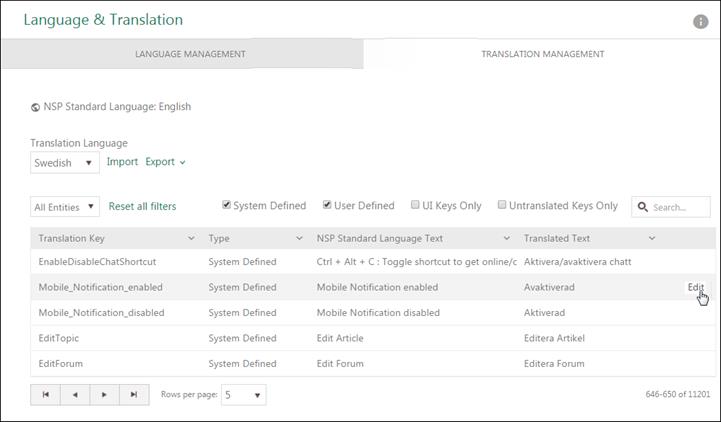
Translation Management
Translation Management tab is used to manage translations for the language keys in the system. This tab provides both possibilities to search for and translate language keys directly in the interface, and tools for export/import xml files.
At the top of the page NSP Standard Language is displayed. This language is defined when NSP is installed and it is the master language in all translations. See NSP Standard Language.
In dropdown below you select Translation Language for which you want to see translation keys. Dropdown contains all Active languages, see section Language Management.
After choosing Translation Language the list with all translation keys for the chosen language, and additional options will appear.
•Translation Key: Name of the language key used internally in the system to define the key.
•Type: System Defined or User Defined.
•NSP Standard Language Text: Text value of the key in NSP Standard Language.
•Translated Text: Text value of the key in selected Translation Language.
Rightmost on the row there is an action button Edit. See Edit Translation keys.
Translation Management
Just next to the Translation Language dropdown there are buttons for Import and Export, see section Import/Export Language files.
Above list there are checkboxes to filter the list:
•Entities filter is dropdown and used to filter list by entity type. You can select All Entities, CI, Contract, Knowledge Base Article or Ticket to filter the list to contain only language keys belonging to the selected entity. As default All Entities is selected.
•System Defined. Checkbox to display/not display System Defined keys, the language keys which are part of the NSP installation and common for all NSP systems. This includes e g texts in user interface, error messages, default entities, types and properties. All language keys, both System Defined keys and User Defined keys are displayed as default.
•User Defined. Checkbox to display/not display User Defined keys, the language keys which are unique to the specific NSP installation. This includes e g names of user defined entities, templates, types and properties.
•UI Keys Only. By selecting this checkbox, list is filtered and display only translation keys which is used for User Interface.
•Untranslated Keys Only. This checkbox filter the list and display only translation keys which are not translated.
Reset all filters option is used to reset all filters and return the display to its initial state.
Search, sorting, filtering and paging functions are similar to other lists in NSP, see section General User Interface.