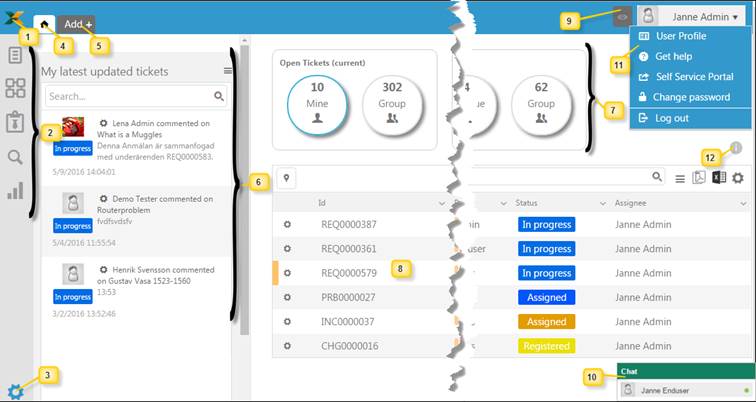
NSP provides an Agent interface that contains of the left bar having access buttons, top bar with tabs and other user related options. When you start NSP Dashboard is displayed, containing an overview of tickets and tasks connected to the Agent.
Below figure shows the components of Agent interface:
Agent interface
The components are described in the below list. The numbers in the figure corresponds to the numbers in the list:
1. Home Icon: This icon is used as a shortcut key to navigate to Dashboard from any other page in NSP.
2. Left navigation panel with buttons to access functions in NSP:
|
|
Task & Ticket Lists: This selection displays Ticket and Task Views available for the Agent in the left navigation pane. |
|
|
CMDB: Go to home page of CMDB (Configurtion Management in NSP). CMDB. |
|
|
Contract Management: Go to home page of Contract Management. |
|
|
Search: Link to Search page, a feature to search data in NSP. |
|
|
Reports: Link to Reports page, standard reports in NSP. |
3. Configurations: Opens Configuration Setting functions in the left navigation pane. This selection is only available for System Administrators (Agents having configuration permissions).
4. Home: Shortcut key to navigate back to the latest selected function in navigation panel, Configurations or Dashboard. If the latest selected function is in navigation panel or Configurations is button marked with color (see 3 in above figure, Configurations button is colored). If no button is colored the Home button will navigate to Dashboard.
5. Add +: This button is used to access forms to create
Ticket, Task, CI or Contract. In a
dropdown menu Recently Changed Tickets are
displayed for direct access.
Add
Ticket.
Add/Edit
Task.
Adding new CI.
Adding new Contract.
6. My latest updated tickets: This is a list of agent´s
latest updated tickets.
My latest updated tickets.
7. Dashboard Summary Stats: Groups of icons showing number
of tickets and task currently connected to the Agent and the Groups agent
is member of. You can click the icons to display a list of the tasks or tickets
included in the selected category.
Dashboard – Ticket and Task Overview.
8. List
of tickets or tasks: Shows the list according to selected Summary Stats.
Tickets: Tickets.
Tasks: Tasks.
9. This toggle button is used to show/hide chat windows. It is only displayed if chat is enabled in User’s Profile Settings. The button also displays a badge showing the total number of messages unread by user. You can click the button anytime to show the chat window and read the messages.
10. Chat window. Chat.
11. This displays the profile picture and name of the logged in user. Clicking or mouse over this area opens the User Settings menu:
|
User Profile: |
Opens the profile page of the user in editing mode. User Settings. |
|
Get Help: |
Opens the User Manual in a new browser tab. |
|
Self Service Portal: |
The NSP Self Service portal is opened in a new tab. |
|
Change Password: |
Opens a form where you can change your password. |
|
Log Out: |
Current session is ended and log in page is displayed. |
12.
Information/Help: This button shows a help text connexted to the page/function
cuurently displayed. In the popup there is a link, Read more…, click this link
opens User Manual for the current function.
Help function.


